
A DIGIBOX D6 MAX storage full warning does not automatically mean the box is faulty or that you need to erase everything. It usually means the operating system, installed apps, updates, temporary files, downloads, and personal media are competing for the same built-in space. The DIGIBOX authorized retailer can help you check current support information, while the DIGIBOX D6 MAX Android TV box page confirms the current 64GB eMMC storage specification.
This guide explains a careful cleanup order that protects the apps and settings you still use. Menu names can vary slightly by software version, so read each confirmation screen before deleting anything.

Why available storage is lower than 64GB
A DIGIBOX D6 MAX storage full message can appear because the advertised capacity is not the same as empty user space. Android 12, built-in software, app updates, and system files already use part of the 64GB eMMC storage. The remaining amount changes as you install compatible apps, download media, or allow caches to grow. Our DIGIBOX D6 MAX RAM and storage explainer describes why 4GB RAM and 64GB storage perform different jobs.
| What uses space | What it contains | First safe action |
|---|---|---|
| Apps | Installed application files and updates | Remove only apps you recognize and no longer use |
| Cache | Temporary thumbnails, menus, and playback data | Clear the affected app’s cache |
| Downloads | Offline video, installers, and saved files | Review each file before deletion |
| Personal media | Photos, music, and videos copied to the box | Move wanted files to compatible separate storage |
| System data | Android and device software | Do not delete or modify it manually |
Check the storage screen before changing anything
Open Settings and look for Storage, Device Preferences, or a similarly named menu. Note which category is using the most space. If one app is unusually large, inspect that app first. If videos or downloads dominate, review those files instead. A targeted cleanup is safer than deleting several categories at once.
- Wait for the home screen to finish loading.
- Open Settings and choose Storage or Device Storage.
- Write down the currently available space.
- Check Apps, Cached Data, Downloads, and personal media.
- Choose the largest category that you understand.
- Make one change, restart the box, and check the number again.
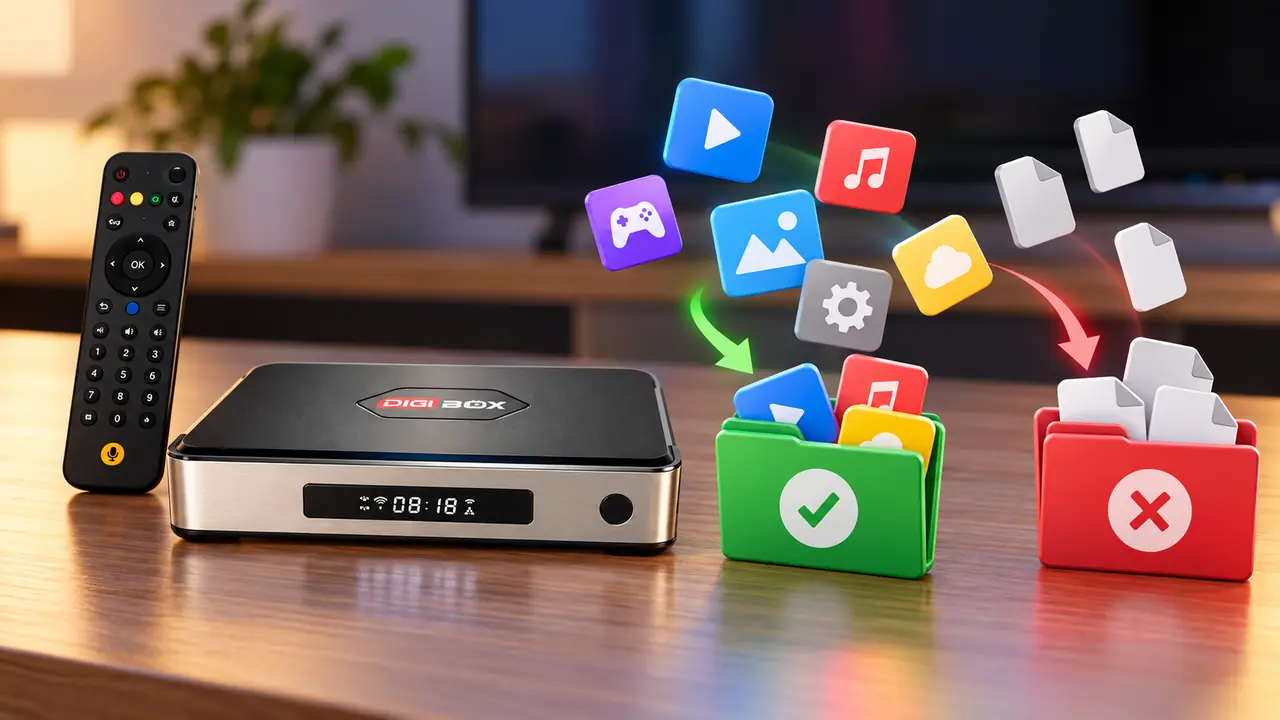
Use this cleanup order to protect your settings
1. Remove downloads you no longer need
Offline videos and copied files can be much larger than ordinary app settings. Open the app that created a download and use its own download manager when possible. Confirm that a file is not the only copy before deleting it.
2. Clear cache for the problem app
Cache is temporary data. Clearing it normally leaves the app installed and keeps your account data, although the first launch may be slower while temporary files rebuild. Follow our step-by-step cache cleanup guide if one app is unusually slow or large. Do not confuse Clear Cache with Clear Data.
3. Uninstall unused compatible apps
Remove only apps you personally installed, recognize, and no longer use. Do not remove built-in software simply because its purpose is unfamiliar. The DIGIBOX D6 MAX app installation guide explains the difference between built-in options, supported app stores, and APK installation risks.
4. Move personal media when it makes sense
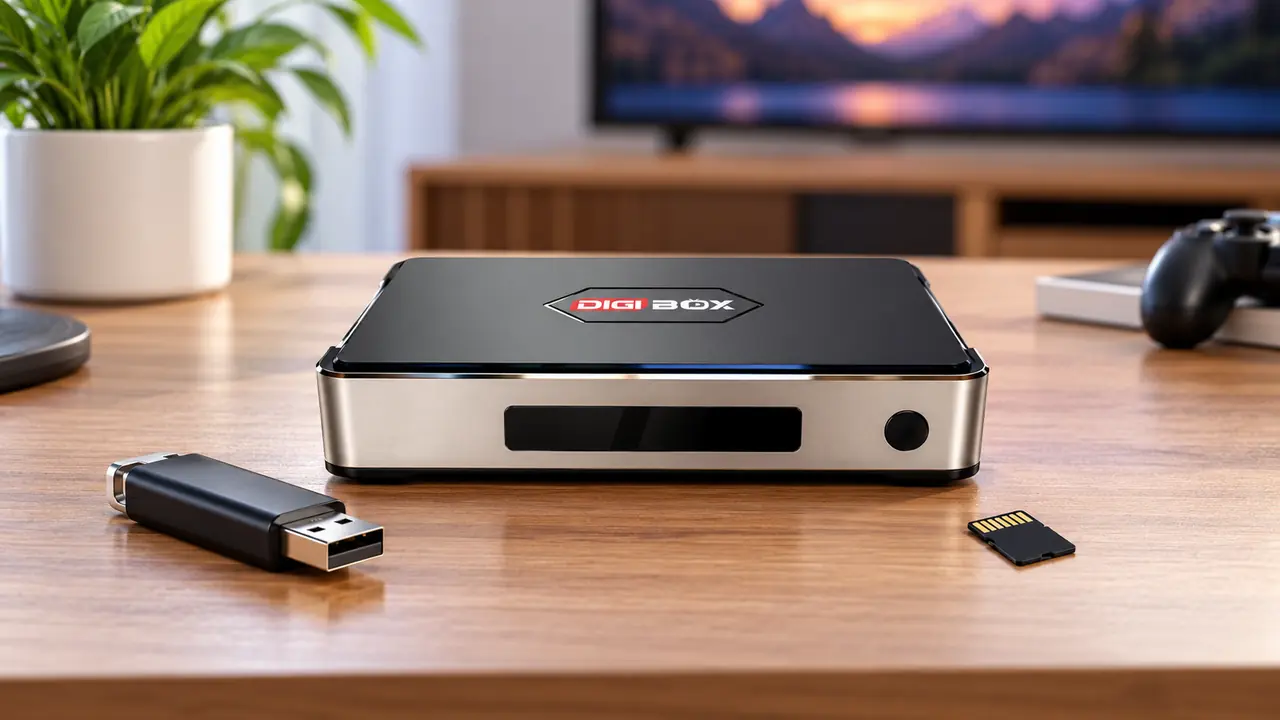
The current product specification lists four USB 2.0 ports and a MicroSD slot. Compatible separate storage can be useful for personal photos, music, or videos, but it should not be treated as a guaranteed replacement for internal app storage. File-system, app, and media-format compatibility can vary. Back up anything important before moving it.
Actions that can create a bigger problem
- Do not install an unfamiliar cleaner that requests broad permissions.
- Do not erase app data when you only intend to remove cache.
- Do not delete system folders or built-in software manually.
- Do not perform a factory reset before reviewing downloads, cache, and unused apps.
- Do not unplug power while an update is being installed.
- Do not assume separate USB storage will work as internal storage for every app.
A factory reset removes installed apps, saved networks, accounts, and preferences. It is a last resort, not a routine answer to a DIGIBOX D6 MAX storage full warning. If the box is also freezing, losing power, or failing to start, use the broader DIGIBOX D6 MAX troubleshooting guide before making destructive changes.
How to prevent another DIGIBOX D6 MAX storage full warning
If a DIGIBOX D6 MAX storage full notice returns, keep only the apps your household actually uses, review offline downloads after trips or events, and check storage before a large app update. A little free space gives Android and compatible apps room to update and create temporary files. There is no honest universal percentage that guarantees perfect performance, so use the device’s own storage screen and watch for recurring warnings.
Storage cleanup will not fix every viewing problem. If only online video pauses while menus remain responsive, test the network instead. If a remote feels delayed, check its batteries and connection. The DIGIBOX D6 MAX setup and support guide helps separate storage, network, HDMI, and control issues.
DIGIBOX D6 MAX storage full FAQ
Does 64GB mean I receive 64GB of empty space?
No. Android, built-in software, and system files use part of the advertised capacity. A DIGIBOX D6 MAX storage full warning refers to the available portion, so check Settings for the current amount.
Will clearing cache delete my apps?
Normally, no. Clearing cache removes temporary files. Clearing app data or uninstalling is different and may remove accounts, settings, downloads, or the app itself.
Can I install every app on a USB drive?
No universal guarantee applies. External-storage behavior depends on Android, the app, and the storage format. It is generally more predictable for compatible personal media.
Should I install a storage-cleaner app?
Use built-in storage and app controls first. Avoid unfamiliar cleaners that request unnecessary access or promise unrealistic performance gains.
When is a factory reset appropriate?
Only after ordinary cleanup and troubleshooting fail, the box can still reach Settings, and you have backed up needed files and account details. Contact authorized support if you are unsure.
Choose a cleaner, easier entertainment setup
After resolving a DIGIBOX D6 MAX storage full problem, visit the official DIGIBOX retailer site for current ordering and support information. DIGIBOX D6 MAX combines 64GB eMMC storage with built-in viewing options across broad entertainment categories and does not require a mandatory DIGIBOX monthly box fee; internet service and optional third-party subscriptions remain separate.
Use discount code DG5 for 5% off your DIGIBOX D6 MAX order.