
If your DIGIBOX won’t turn on, don’t assume that the device is damaged immediately. In many cases, startup problems stem from simple issues such as an unstable power connection, incorrect HDMI input selection, loose cables, or temporary Android system freezes.
The DIGIBOX D6 MAX is designed as a modern Android TV Box for home entertainment, but like any smart streaming device, it may occasionally experience power, display, or connection issues. This complete DIGIBOX D6 MAX troubleshooting guide explains how to fix common problems, including:
- DIGIBOX D6 MAX not turning on
- DIGIBOX D6 MAX no signal error
- DIGIBOX D6 MAX black screen
- HDMI connection problems
- Remote control pairing issues
- Startup freezes and restart loops
Before performing advanced steps such as resetting the device, follow the simple checks below. Most issues can be solved by checking power, HDMI connection, and basic setup settings.
Do not open the box, use a visibly damaged adapter or cable, or install firmware from unofficial websites. If the adapter, cable, or device becomes unusually hot, smells burnt, is swollen, or shows physical damage, unplug it safely and contact your seller or an authorized support representative.
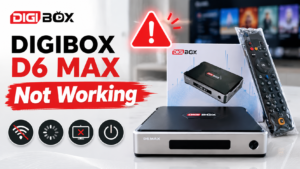
🔍 Is Your DIGIBOX D6 MAX Having a Power Issue or Display Issue?
Before troubleshooting, identify what type of problem you are experiencing. A DIGIBOX D6 MAX with no power response is different from a device that turns on but shows “No Signal” on your TV.
| Symptom | Possible Cause | First Action |
|---|---|---|
| No indicator light or startup response | Power outlet, adapter, USB-C connection | Check power connection |
| TV shows “No Signal” | Wrong HDMI input or HDMI cable issue | Check HDMI source |
| Black screen but device appears active | HDMI handshake or display setting | Try another HDMI port |
| Logo appears but freezes | System issue or unstable power | Complete power cycle |
| Remote does not respond | Battery or Bluetooth pairing | Replace batteries and pair again |
1. DIGIBOX D6 MAX Has No Power Indicator? Check the Outlet First
The easiest troubleshooting step is checking whether the power source is working correctly. A power strip may be switched off, a protection circuit may have activated, or the wall outlet itself may not provide power.
How to check:
- Disconnect the DIGIBOX adapter.
- Test the same outlet with another device, such as a lamp or phone charger.
- If the outlet does not work, try another power source.
- If using a power strip, confirm that the main switch is turned on.
- Test the DIGIBOX D6 MAX directly from the wall outlet if possible.
2. DIGIBOX D6 MAX USB-C Power Adapter or Cable Problem
The DIGIBOX TV Box uses a USB Type-C power connection and includes a matching power adapter. A loose USB-C connection can sometimes look connected while not providing stable power, especially when the cable is placed behind a wall-mounted television.
Follow these steps:
- Disconnect the power adapter from the wall.
- Remove the USB-C connector from the DIGIBOX D6 MAX.
- Check the cable and adapter for damage, loose connection, burn marks, and unusual heat
- Reconnect the USB-C cable firmly.
- Use the original DIGIBOX power adapter whenever possible.
- Leave the device unplugged for 60 seconds before reconnecting.
Avoid using random phone or laptop USB-C chargers. Different chargers may provide different power profiles and can cause random restarts, boot failures, and unstable operation.
3. DIGIBOX D6 MAX No Signal? Check Your HDMI Input
A common misunderstanding is that a TV showing “No Signal” means this Android TV box is not working. In many cases, the device is powered on, but the television is connected to the wrong HDMI source. For example: If your DIGIBOX D6 MAX is connected to HDMI 2, your TV must also be set to HDMI 2.
Check your HDMI input:
- Look at where the HDMI cable is connected.
- Note the HDMI port number: HDMI 1 / HDMI 2 / HDMI 3
- Press the input / Source / HDMI button on your TV remote.
- Select the matching HDMI channel.
- Wait 15-30 seconds for the connection to initialize.
4. DIGIBOX D6 MAX HDMI Cable or TV Port Problem
Even when this smart TV box is powered correctly, a faulty HDMI connection can result in problems such as a black screen, no picture, flickering display, and no audio.HDMI carries both video and audio signals, so always check the cable connection before changing software settings.
Try these steps:
- Turn off the DIGIBOX D6 MAX.
- Remove the HDMI cable from both ends.
- Reconnect the HDMI cable firmly.
- Try another HDMI port on your TV.
- If available, test another high-quality HDMI cable.
After the picture returns, keep the display setting on: Auto / Recommended resolution. Using an unsupported resolution setting may cause a blank display.
5. DIGIBOX D6 MAX Freezes? Perform a Complete Power Cycle
Sometimes an Android TV Box may become temporarily unresponsive because of application crashes, background system processes, network interruptions, and unexpected shutdowns.
Repeatedly pressing buttons on the remote usually will not solve this type of problem. A complete power cycle is a safer solution.
How to perform a proper power cycle:
- Disconnect the DIGIBOX D6 MAX from power.
- Wait at least 60 seconds.
- Remove unnecessary USB accessories: External hard drives, USB keyboards, USB hubs, Game controllers
- Connect only: Original USB-C power adapter + HDMI cable
- Turn the device back on.
- Wait several minutes for the Android system to complete startup.
If the issue happened after an unexpected shutdown or update process, allow extra time for the system to initialize. A proper restart often fixes temporary Android TV Box issues without requiring a factory reset.
6. DIGIBOX D6 MAX Update Failed or Firmware Problem
If your DIGIBOX turns on but freezes at the startup logo, repeatedly restarts, or behaves abnormally after an update, the problem may be related to system software.
| ⚠️ Important warning
Avoid downloading random firmware files from unofficial websites, forums, or unknown sources. |
Recommended steps:
- Check whether the device can access system settings.
- Use the built-in update function when available.
- Only install updates provided for your exact DIGIBOX D6 MAX model.
- Do not disconnect power during an update.
DIGIBOX guidance recommends using official update methods and avoiding firmware intended for other models.
If your DIGIBOX D6 MAX is stuck after an update, you should prepare: order information, device serial number, short video showing the issue. Then contact authorized support for the correct recovery method.
7. DIGIBOX D6 MAX Keeps Restarting? Check Heat and Accessories
If your DIGIBOX D6 MAX powers on but keeps restarting, the cause may not always be software. Environmental factors can affect Android TV Box performance. Common causes include: poor ventilation, overheating inside a closed cabinet, too many connected USB accessories, and an unstable power source.
| ✅ Recommended setup
Place your DIGIBOX D6 MAX: On a flat surface | In an open area | Away from heat sources | Away from AV receivers or game consoles |
Remove unnecessary accessories and test the device using only: Power adapter + HDMI cable. If the device continues restarting after cooling and basic testing, contact support for further assistance.
8. DIGIBOX D6 MAX Remote Not Working? Fix Bluetooth Pairing
Sometimes the TV box is working normally, but a disconnected remote creates the impression that the DIGIBOX is not turning on. The TV box includes a Bluetooth voice air-mouse remote, which provides easier navigation compared with traditional infrared remotes.
Try these remote troubleshooting steps:
- Replace batteries
Check: Battery direction, Battery level, Battery contact points - Move closer to the device
Make sure there are no objects blocking communication between the remote and the tv box. - Re-pair the Bluetooth remote
Go to: Settings → Remotes & Accessories
Follow the on-screen pairing instructions.
If pairing fails:
Restart the Android TV box → Wait 60 seconds → Try pairing again.
⚙️ Should You Factory Reset the DIGIBOX D6 MAX?
A factory reset should always be considered a last resort. Many users reset their Android TV Box too early, but a reset cannot fix a damaged power adapter, wrong HDMI input, loose cable connection, or a faulty outlet. A factory reset removes installed applications, Wi-Fi settings, account information, and personal preferences.
- ✅ The device receives power
- ✅ The HDMI connection works
- ✅ You can access system settings
- ✅ Software problems continue after basic troubleshooting
📞 When Should You Contact DIGIBOX Support?
Most DIGIBOX D6 MAX problems can be solved with: checking the power outlet, reconnecting the USB-C adapter, testing the HDMI input, and restarting the device. However, stop troubleshooting and contact support if:
- The adapter is damaged
- The device becomes unusually hot
- There is no response after testing another outlet
- The box has physical damage
- Startup problems continue after all basic checks
When contacting support, prepare: order number, serial number, TV model, country/region, short video showing the problem
This information helps support quickly identify whether the issue relates to: hardware, display settings, setup process, warranty service.
❓ Frequently Asked Questions
✅ Final Takeaway
When your DIGIBOX D6 MAX won’t turn on, the solution is usually not complicated.
Start with the basics:
- Check the power outlet.
- Reconnect the original USB-C adapter.
- Confirm the correct HDMI input.
- Test another HDMI port.
- Perform a complete 60-second power cycle.
Avoid unnecessary factory resets or unofficial firmware installation before checking simple connection issues.
With proper setup and maintenance, the DIGIBOX D6 MAX Android TV Box can provide a smooth and reliable home entertainment experience.
📦 Where to Upgrade Your DIGIBOX D6 MAX Experience?
If you are looking to upgrade your home entertainment experience with a DIGIBOX D6 MAX, choosing a reliable seller is just as important as choosing the device itself.
Buying from an authorized and trusted store means you get a genuine DIGIBOX D6 MAX, accurate product information, and dedicated after-sales support whenever you need help.
At[digiboxofficial], we provide authentic DIGIBOX D6 MAX products with professional customer support. Whether you need help with initial setup, connection issues, remote pairing, or daily usage questions, our support team is ready to assist you and help you enjoy a smoother TV box experience. With a genuine DIGIBOX D6 MAX and reliable customer service behind you, you can enjoy your device with greater confidence and peace of mind.