
If your DIGIBOX streaming box feels slower than usual, an app keeps freezing, or menus take longer to respond, clearing the app cache may help. On the DIGIBOX D6 MAX Android TV box, clearing cache removes temporary files without deleting the app, your account, or your saved preferences.
This guide explains when to clear cache, how to clear it safely, and what to try if the problem continues.
Contents
What Cache Does on DIGIBOX D6 MAX
Cache is temporary information that an app stores to load images, menus, thumbnails, and other frequently used elements more quickly. Over time, these files can become outdated or unusually large.
When one app is slow, crashes, or refuses to load correctly, clearing its cache gives the app a clean temporary storage area. It does not normally remove the app itself.
The DIGIBOX D6 MAX runs Android 12 and includes 4GB of memory and 64GB of eMMC storage. That storage is useful for compatible apps and media, but unnecessary temporary files can still reduce available space.
When Should You Clear an App Cache?
Clearing cache is most useful when the problem appears to be limited to one application. Try it if an app opens slowly, stays on a loading screen, shows broken thumbnails, closes unexpectedly, or became unstable after an update.
If the entire interface is slow, the problem may involve several apps, network conditions, storage space, or a pending system process. For wider installation questions, see our guide to installing apps on DIGIBOX D6 MAX.
How to Clear Cache on DIGIBOX D6 MAX Step by Step
Menu names can vary slightly by software version, but the general process follows the Android app settings structure.
- Turn on the DIGIBOX D6 MAX and wait for the home screen to finish loading.
- Open Settings.
- Select Apps or Applications.
- Choose See All Apps if the full list is not shown.
- Select the app that is slow, freezing, or refusing to open.
- Open Storage or Storage & Cache.
- Select Clear Cache.
- Return to the home screen and open the app again.
After clearing the cache, the first launch may take slightly longer because the app needs to rebuild temporary files. That is normal. Test the app for a few minutes before making another change.

Cache vs App Data: What Is the Difference?
| Option | What it removes | When to use it |
|---|---|---|
| Clear Cache | Temporary files | First step for slow loading or temporary errors |
| Clear App Data | Accounts, settings, downloads, and stored app information | Only after ordinary troubleshooting fails |
| Uninstall | The app and its local installation | When the app is damaged or unsupported |
Start with Clear Cache. Use Clear App Data only if you are prepared to sign in again and configure the app from the beginning.
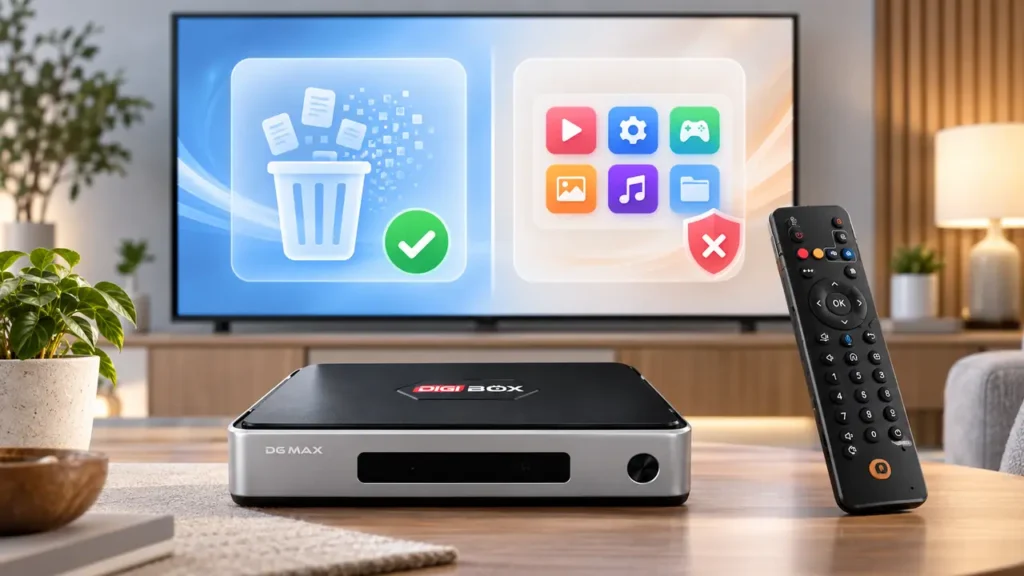
Which Cache Should You Clear?
- One streaming app is slow: Clear that app’s cache first.
- Several apps are slow: Restart the DIGIBOX D6 MAX and check available storage.
- Only online video buffers: Check the network before changing app data.
- The remote feels delayed: Cache clearing is unlikely to fix a remote connection problem.
- The home screen is slow: Close unused apps and restart the box before considering a reset.
If the issue appears during live streaming, our DIGIBOX Wi-Fi and Ethernet guide can help you separate an app problem from a network problem.
What to Do If Clearing Cache Does Not Help
Clearing cache is a low-risk step, but it cannot repair every type of problem. Close the affected app, restart the DIGIBOX D6 MAX, and allow the home screen to load completely before testing again.
If the app depends on live content, a weak Wi-Fi signal or unstable router can look like an app failure. Try reconnecting the network or testing Gigabit Ethernet.
Remove apps and local files you no longer use, and keep enough storage free for app updates. Use only the built-in update option or instructions supplied by authorized support. The DIGIBOX D6 MAX setup and support guide explains safer update and troubleshooting steps.
If navigation is the real problem, use our guide to pairing the DIGIBOX D6 MAX remote. Remote pairing and app cache are separate troubleshooting areas.
For a broader view of compatible streaming services, read the DIGIBOX streaming app guide. Installing an app does not automatically guarantee that every playback feature will work.
Avoid These Common Cache-Clearing Mistakes
- Do not clear app data when you only intend to clear temporary files.
- Do not uninstall a built-in app because it loaded slowly once.
- Do not install random cleaning tools that request unnecessary permissions.
- Do not factory-reset the DIGIBOX D6 MAX before trying simple checks.
- Do not assume buffering is caused by cache without testing the network.
The DIGIBOX D6 MAX supports compatible entertainment apps, live content, on-demand media, local files, and other Android-based functions. Actual app behavior depends on the app version, account, region, network, and provider requirements.
FAQ: Clearing Cache on DIGIBOX D6 MAX
Will clearing cache delete my DIGIBOX app?
No. Clearing cache removes temporary files and normally leaves the app installed.
Will I be logged out after clearing cache?
Usually no. Logging out is more commonly associated with clearing app data or uninstalling the app.
How often should I clear cache?
Only when an app shows a problem or temporary storage has grown unusually large. Daily clearing is not necessary.
Can clearing cache fix DIGIBOX buffering?
Sometimes, if the app has corrupted temporary files. If buffering continues, check Wi-Fi, Ethernet, router traffic, and the service itself.
Should I clear cache for every app?
No. Start with the app that is showing the problem so you can identify the real cause.
When should I contact DIGIBOX support?
Contact support if the box repeatedly restarts, will not power on, loses several apps at once, or continues to fail after basic troubleshooting.
For current product details and support information, return to the DIGIBOX official website. If you want to compare the hardware before ordering, review the full DIGIBOX D6 MAX TV box specifications.