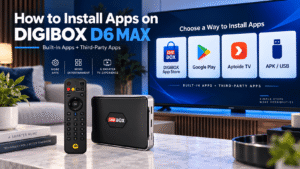
One of the biggest advantages of the DIGIBOX D6 MAX is that you do not have to start with an empty TV box. DIGIBOX has its own built-in entertainment ecosystem, with apps designed for live TV, movies, TV series, news, sports, international programming, and other on-demand content. At the same time, the Android-based system lets you install compatible third-party apps.
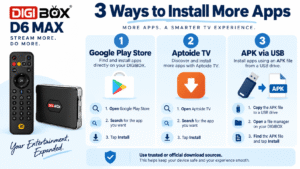
If you’re looking for how to install apps on DIGIBOX, this guide covers the main installation methods available on the DIGIBOX D6 MAX, including the built-in DIGIBOX App Store, Google Play Store, Aptoide TV, and manual APK installation.
You can learn more about the current model on the DIGIBOX website, browse available products in the DIGIBOX shop, or view the DIGIBOX D6 MAX product page.
Important: app availability can change with firmware versions, regions, and app-provider updates. Some built-in DIGIBOX apps may already appear on your device, while others may be available through the built-in app store for installation.
What Apps Are Available on DIGIBOX D6 MAX?
Before installing anything, it is important to understand that the DIGIBOX TV box is not designed only around third-party applications.
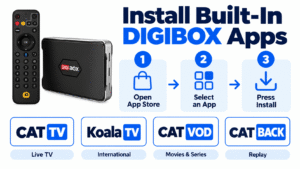
DIGIBOX devices provide built-in entertainment apps that give users direct access to different categories of live and on-demand entertainment. Depending on the current software version and region, the DIGIBOX app ecosystem may include apps such as CAT TV, Koala TV, CAT VOD, and CAT BACK.
These apps are designed around different types of entertainment. For example, users can browse categories for international live television, movies, TV series, news, variety programs, cartoons, sports and programming in different languages and regions.
That means you can begin using DIGIBOX’s own entertainment environment first and then install additional compatible Android apps if you want even more options.
DIGIBOX documentation lists CAT TV, Koala TV and CAT VOD among its core entertainment apps, while CAT BACK is designed around replay functionality. The exact app selection can change after software updates, so always check the App Store on your own DIGIBOX D6 MAX rather than assuming every unit will show exactly the same list.
Before Installing Apps: Connect DIGIBOX D6 MAX to the Internet
Every app installation method requires an internet connection unless you are installing an APK from a USB drive.
From the DIGIBOX home screen, open Settings and go to Network & Internet. You can then connect using either Wi-Fi or Ethernet.
The DIGIBOX D6 MAX supports dual-band Wi-Fi 6 as well as Gigabit Ethernet, so you can choose whichever connection works best for your home.
If this is your first time using the box, our DIGIBOX D6 MAX set up guide covers HDMI connection, power, remote pairing, Wi-Fi, and the initial system setup in more detail.
Method 1: Install Built-In DIGIBOX Apps from the App Store
For most DIGIBOX owners, this is the first place to start.
The built-in DIGIBOX App Store or App Play area is designed to provide convenient access to apps intended for the DIGIBOX platform. Depending on your firmware version, some apps may already be installed while others may appear as downloadable options.
To install a built-in DIGIBOX app:
- Turn on your DIGIBOX D6 MAX and make sure it is connected to the internet.
- Open the DIGIBOX App Store or App Play section from the home screen.
- Browse the available applications.
- Highlight the app you want using the remote.
- Press OK or select Install.
- Wait for the installation to finish.
- Return to the Apps section and open the newly installed app.
This is generally the preferred route for DIGIBOX-specific applications because it avoids searching random APK websites and makes installation easier with the remote control.
How to Download CAT TV App for DIGIBOX
One common search from new owners is download CAT TV app for DIGIBOX.
CAT TV is part of the DIGIBOX D6 MAX entertainment ecosystem and is commonly associated with live television, news, sports, and international content categories.
If CAT TV is already installed on your DIGIBOX D6 MAX, simply open it from the Apps section.
If it is not currently installed, first open the built-in DIGIBOX App Store and look for CAT TV. Select it with the remote and choose the installation option.
The same approach can be used for other DIGIBOX ecosystem apps such as CAT VOD, Koala TV, and CAT BACK when they are offered through your device’s built-in store.
If one of these apps disappears after a reset or software update and it is not shown in the built-in store, avoid downloading an unknown APK from a random website. Update the DIGIBOX software first and, if necessary, contact your seller or DIGIBOX support channel for the correct installation source.
What Do the Main Built-In DIGIBOX Apps Do?
CAT TV
CAT TV is mainly designed around live television and organized channel categories. Depending on the version and region, users may find international programming, news, sports, entertainment, and other live categories.
Koala TV
Koala TV focuses heavily on international and Asian entertainment. It can be useful for overseas households that want easier access to programs in different countries and languages.
CAT VOD
CAT VOD is the on-demand side of the DIGIBOX entertainment experience. It is designed around browsing movies, TV series and other video-on-demand categories rather than only live channels.
CAT BACK
CAT BACK provides replay-oriented functionality for supported programming, giving users another way to browse previously aired content where available.
Together, these apps are an important part of the DIGIBOX APP experience. Third-party apps are an additional option rather than the only reason to use the box.
Method 2: Install Third-Party Apps from Google Play Store
The DIGIBOX D6 MAX runs Android 12, so compatible applications can also be installed through supported Android app sources.
Google Play is usually the safest and simplest option for mainstream third-party apps.
Google’s official Android TV instructions follow a similar process: open the Play Store, browse or search for an app, select it and choose Install.
On DIGIBOX D6 MAX:
- Open Google Play Store from the Apps section.
- Sign in with your Google account if requested.
- Select the search icon.
- Type or use voice search for the app name.
- Open the app’s listing.
- Select Install.
- After installation, choose Open or return to the Apps screen.
Examples may include YouTube, Spotify, Kodi, Prime Video, and other compatible entertainment applications. Availability is determined by the individual developer, device compatibility, and region.
For Google’s current instructions, see the official Android TV app installation guide.
If you want to understand the difference between installing an app and confirming that all of its playback features work correctly, read our DIGIBOX app compatibility guide.
Method 3: Install Apps Through Aptoide TV
Aptoide TV is another way to find Android TV applications. If Aptoide TV is already provided inside your DIGIBOX App Store, you can select it and install it in the same way as another app.
After installation:
- Open Aptoide TV.
- Use the search function to find an application.
- Check the app name and publisher carefully.
- Select the app.
- Choose the download or install option.
If Aptoide TV is not included on your device, its developer provides installation information on the official Aptoide TV website.
For mainstream apps that are already available through Google Play, Google Play is generally the simpler first choice. Alternative stores are most useful when a compatible TV app is not listed in your normal Play Store catalog.
Method 4: Install an APK on DIGIBOX D6 MAX
Advanced users may occasionally need to install an Android APK manually. This process is commonly called sideloading.
Because the DIGIBOX D6 MAX uses Android 12, permission to install an APK outside the normal app store is generally granted to the specific browser or file-manager app that opens the APK rather than using one unrestricted global switch.
The safest method is to obtain the APK directly from the application’s official developer website.
Option A: Install an APK with a USB Drive
- On your computer, download the APK from the app developer’s official website.
- Copy the APK file to a USB flash drive.
- Insert the USB drive into your DIGIBOX D6 MAX.
- Open a compatible file manager.
- Browse to the USB storage device.
- Select the APK file.
- If Android asks for permission, allow that file manager to install unknown apps.
- Select Install.
- After installation, return to the Apps screen.
Option B: Download an APK Through the Browser
If the official developer provides a direct Android download, you can open its official website in the browser on your DIGIBOX, download the APK, and open it from the Downloads folder.
Android may ask you to allow the browser or file manager to install apps from that source. Only enable the permission when you trust the developer and the download location.
Google warns that applications downloaded from unknown sources can potentially harm a device or expose personal information. Keeping Google Play Protect enabled provides an additional safety check. You can learn more from Google’s Play Protect guidance for Android TV.
Why Some Android Apps Will Not Work on DIGIBOX
An APK successfully installing does not automatically mean the app is optimized for television.
Some Android apps are designed only for phones or tablets. They may install on a TV box but display incorrectly, require touch controls, fail to respond properly to the remote, or refuse to play video.
If an app installs but does not work correctly, uninstalling it is usually better than repeatedly forcing it to run.
Go to: Settings → Apps → See All Apps → Select the App → Uninstall
You can also try clearing the app cache before removing it: Settings → Apps → Select App → Clear Cache
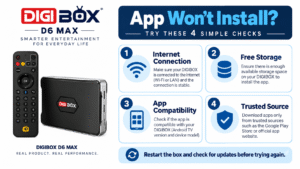
What If a DIGIBOX D6 MAX App Will Not Install?
If a DIGIBOX D6 MAX app will not download or install, check the simple causes first.
Make sure the box has a working internet connection, enough free storage, and the latest available system update. Restarting the box can also resolve a temporary Play Store or App Store error.
If Google Play refuses to install a particular app, that app may not support the device, Android version, or your current region.
For an APK installation, check that the installation source has permission and that the APK was downloaded completely.
If the entire device is behaving abnormally rather than just one application, see our DIGIBOX D6 MAX troubleshooting guide.
How to Update Apps on DIGIBOX D6 MAX
Built-in DIGIBOX apps may receive updates through the DIGIBOX app ecosystem or device software updates.
For applications downloaded through Google Play, open the Play Store and check for available app updates. Google’s Android TV documentation also allows users to enable automatic app updates.
For manually installed APKs, updates normally need to come from the original developer or the same trusted source used for installation.
Avoid replacing a legitimate application with an APK downloaded from an unrelated website simply because the version number appears newer.
Which App Installation Method Should You Use?
| App Type | Recommended Installation Method |
|---|---|
| DIGIBOX built-in apps | DIGIBOX App Store / App Play |
| Mainstream Android TV apps | Google Play Store |
| Alternative TV apps | Aptoide TV when appropriate |
| Apps distributed directly by developers | Official developer APK via browser or USB |
Final Thoughts: Installing Apps on DIGIBOX D6 MAX Is Easy
The most important thing to remember is that the DIGIBOX D6 MAX already has its own entertainment ecosystem. You do not need to treat it like an empty Android box and immediately begin searching for dozens of third-party applications.
Start with the built-in DIGIBOX apps for live TV and on-demand entertainment, including categories such as movies, TV series, news, variety programs, cartoons, sports, and international content. Then use Google Play, Aptoide TV, or a trusted APK when you want additional compatible applications.
For most users, the recommended order is simple: DIGIBOX App Store first, Google Play second, and manual APK installation only when necessary.
You can browse the latest products in the DIGIBOX shop or learn more about the current DIGIBOX D6 MAX.
DIGIBOX D6 MAX Discount Sale
The current DIGIBOX D6 MAX SALE is available now. Enter coupon code DG8 at checkout to receive 5% OFF.