Contents
Before you buy: Check official app availability, model-specific support, and actual video quality as three separate questions. Android 12, generous storage, and high-resolution decoding do not answer all three.
Check What App Compatibility Actually Means
A streaming app can appear on a home screen yet fail when you select a movie. It can also open successfully without delivering the resolution you expected.
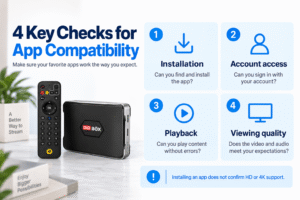
When evaluating a DIGI BOX, separate these four stages:
- Installation: Is the provider’s official app available for this device?
- Account access: Can you sign in using your own eligible account?
- Playback: Can the app play a full title without a compatibility error?
- Viewing quality: Does playback meet your requirements for resolution, subtitles, audio, and remote navigation?
The DIGIBOX TV box offers an Android-based environment for compatible apps and media. That description should not be interpreted as confirmation that every Android TV streaming service supports the device.
Hardware decoding and subscription streaming are different checks. Decoding specifications describe the video formats hardware can process; a streaming provider also decides which devices and app versions it supports.
Keep the evidence specific: A product listing that says Android 12 or 8K decoding is not proof of Netflix 4K, Prime Video UHD, or Disney+ support. A successful test in one app also says nothing definite about the other two.
Check Netflix, Prime Video, and Disney+ Separately
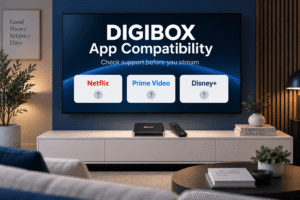
The table below summarizes what the published sources reviewed for this guide establish. It is a buying checklist, not a hands-on test result or a guarantee that a particular app will work.
| Service | What is established | What to verify on D6 MAX |
|---|---|---|
| Netflix | Netflix requires a supported device; some certification errors prevent playback. | Official app availability, model support, and actual playback resolution. |
| Prime Video | Amazon provides its app on a range of supported devices. | Whether the official app supports this exact box and delivers the quality you require. |
| Disney+ | Disney+ supports selected Android TV models and set-top boxes. | Exact device eligibility and official store availability. |
Netflix: Start with the provider’s device guidance. Netflix explains that an unavailable or incompatible Play Store app on an Android TV or set-top box can indicate an unsupported device in its Android TV app troubleshooting instructions.
For a “DIGIBOX Netflix 4K” question, ask for evidence of the resolution delivered during playback on the exact model. A TV reporting a 4K HDMI signal does not demonstrate that the movie stream itself is 4K.
Prime Video: Amazon’s official installation instructions describe downloading the app from the device’s app store and registering the device. Those general instructions do not independently confirm D6 MAX compatibility.
Disney+: The provider lists supported Android TV models and recommends obtaining the app from Google Play. Its supported Android TV guidance does not name DIGIBOX D6 MAX in the examples reviewed. That absence leaves support unconfirmed; it is not, by itself, proof that playback is impossible.
For the broader distinction between the device and the entertainment supplied through individual apps, our guide to DIGIBOX apps and viewing options provides additional context.
Verify App Installation and Real Playback
If you already own the box, test one service at a time. Record where the process fails rather than repeatedly installing different versions without a clear reason.
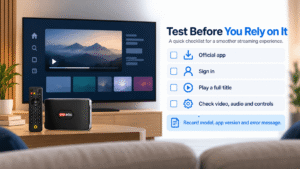
- Identify the device. Record the model and software version shown in its settings. Menu names can vary.
- Check supported updates. Use the device’s built-in update function or instructions supplied by authorized support.
- Find the official app. Search the supported app store available on your device and check the publisher. If the app is unavailable or marked incompatible, ask the provider about device support.
- Sign in normally. Use your own account and the service’s official sign-in flow.
- Play a full title. Check starting, seeking, subtitles, audio, and remote controls. Browsing a catalog is not a playback test.
- Verify quality where possible. Use an in-app playback information screen if available. A title’s UHD badge may describe its available format rather than your current stream.
For the HDMI, network, and initial device checks that come before app installation, follow the D6 MAX setup and update instructions.
A useful test note includes the date, country, device software version, app version, account plan, title played, and any error message. This gives support something concrete to investigate and helps explain differences between two users’ experiences.
About APK downloads: Installing an APK manually does not establish provider support. Avoid modified streaming apps and downloads promising to unlock paid content or certified 4K playback. Ask for the provider’s supported installation route.
Identify Why an App Will Not Play
The most useful first step is to distinguish an unsupported app from an unstable connection. Faster internet cannot fix a service rejecting the device.
- App missing or incompatible: Check provider support and available official updates before trying another installation method.
- Sign-in fails: Test your account on another supported device and note the exact message.
- Playback starts but buffers: Compare Wi-Fi with Ethernet and pause other large downloads during the test.
- Menus display but a video stays black: Record the error, try another title, and check the app provider’s help before assuming the box is faulty.
- No picture anywhere: Check power, HDMI connections, and the selected TV input first.
If playback works but repeatedly pauses, the DIGIBOX Wi-Fi versus Ethernet comparison can help you test whether the wireless connection is contributing to the problem.
For Netflix error tvq-pb-101 (E104), Netflix specifically identifies a certification problem and directs viewers to a supported device. Follow its E104 error guidance instead of treating that message as ordinary buffering.
Avoid starting with a factory reset. First record the symptoms, restart normally, and check supported updates. Resetting creates extra setup work without proving that the underlying compatibility issue can be resolved.
Choose a Setup Around Your Must-Have Apps
Before choosing DIGIBOX for TV entertainment, write down the three apps your household uses most. Then list the requirements that matter: reliable playback, resolution, subtitles, remote navigation, and the account plan you intend to use.
If Netflix, Prime Video, and Disney+ are essential: Require current provider support for your exact device choice. You can also check whether your existing smart TV already supports the services you need.
If you also want compatible Android apps and local media: Consider the D6 MAX’s storage and connections alongside your app checks. Those hardware features can be useful independently of premium streaming support.
Our D6 MAX and Fire TV Stick 4K Max comparison explores the practical trade-offs between a flexible Android-based box and a device focused on mainstream streaming.
You do not have to move every service onto one device. Keeping a supported app on your television while using another HDMI input for compatible DIGIBOX applications can be a practical arrangement.
FAQ
Does DIGIBOX support Netflix?
Official Netflix support for D6 MAX is not established by the product specifications reviewed here. Verify the exact device with Netflix and check official app availability before purchasing primarily for Netflix.
Can DIGIBOX D6 MAX play Netflix in 4K?
Do not assume so from its video-decoding specifications. Netflix 4K playback needs to be confirmed separately for the device and your viewing setup.
Can I install Prime Video or Disney+ on a DIGI BOX?
Check the official app store available on your exact device. Availability, successful installation, and reliable playback are separate checks; this guide does not claim hands-on confirmation for either app.
Are Netflix, Prime Video, and Disney+ subscriptions included?
No subscription access to these services is promised with the hardware. You need your own eligible accounts and any required subscriptions or purchases.
Who can help check my DIGIBOX app compatibility?
Send the model, software version, app name, country, and exact error to DIGIBOX setup support. The streaming provider remains the source for its device-support requirements. Never send account passwords.
Will an update make an unsupported app work?
An official update may resolve a software issue, but it is not a promise of new service certification. Confirm compatibility before relying on a future update as a buying reason.
Choose the D6 MAX when its verified hardware features and confirmed compatible apps match your household. Review the current specifications, then resolve any must-have streaming questions before ordering.