
DIGIBOX D6 MAX no sound with a clear picture? The DIGIBOX D6 MAX has passed one useful test: it is sending video to the TV. The next job is to find where audio stops. This checklist for the DIGIBOX TV box starts with reversible checks—volume, HDMI, and the selected output—before touching app data or system settings. Work through the steps in order and note which change brings the sound back.
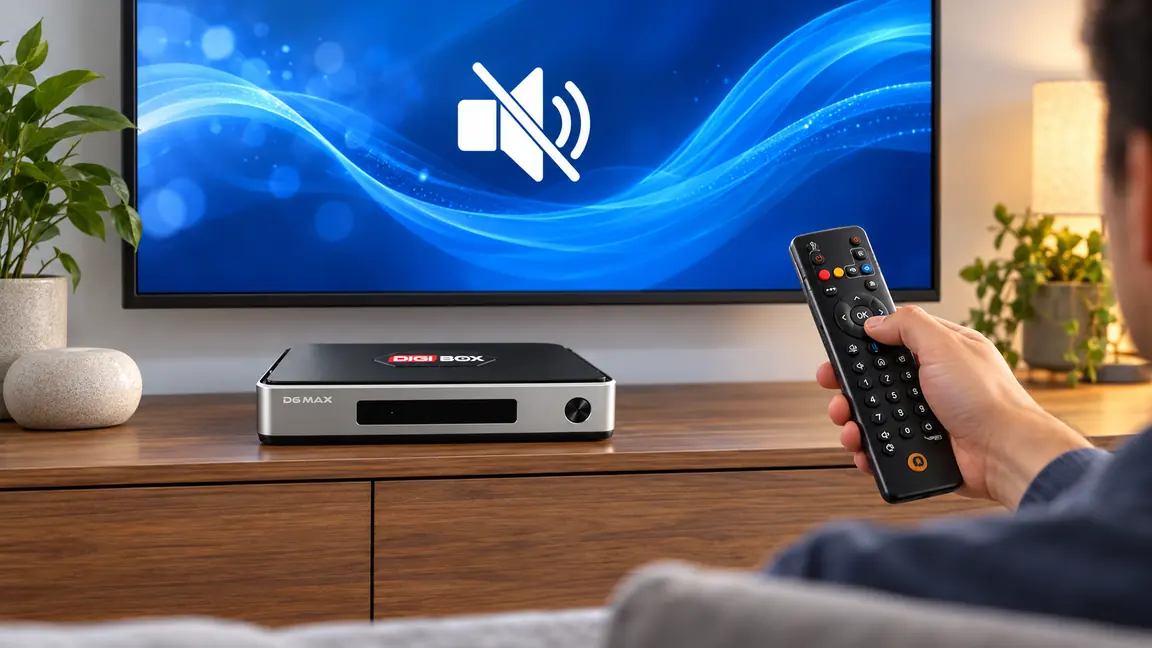
First, identify the scope of the silence
Is sound missing in every app, only one app, or only when a soundbar is connected? Try a second video or a system sound. If all audio is missing, focus on the TV, cable, and output route. If just one app is silent, the app or that particular program is a better suspect. If sound returns through the TV speakers when the soundbar is disconnected, inspect the external audio setup rather than reinstalling entertainment apps.
This narrower approach saves time. Our broader DIGIBOX D6 MAX troubleshooting guide covers startup, picture, and network faults too; use it if the problem extends beyond audio.
Seven checks, from quickest to most specific
1. Check mute and volume on both devices
Press volume up and mute on the DIGIBOX remote, then do the same on the TV. Confirm the TV is not set to zero or muted on a different input. If a soundbar or receiver is in the chain, check its volume and mute separately. A visible volume graphic from one device does not prove that another device in the chain is unmuted.
If volume buttons seem to control the wrong device, review our DIGIBOX D6 MAX remote pairing guide. Its TV-control steps help distinguish a remote-control issue from a real audio-output failure.
2. Reseat the HDMI connection
Turn off the TV and box, remove the HDMI cable at both ends, and reconnect it firmly. Select the TV input that actually holds the DIGIBOX connection. If you have a spare known-good HDMI cable or another TV HDMI port, test one change at a time. A picture does not always rule out an HDMI handshake or cable problem affecting sound.

If you are installing the box for the first time, the DIGIBOX D6 MAX setup walkthrough shows the basic TV-and-HDMI path. Keep the route simple during diagnosis: box directly to TV first, then reconnect extra equipment later.
3. Follow the intended audio route
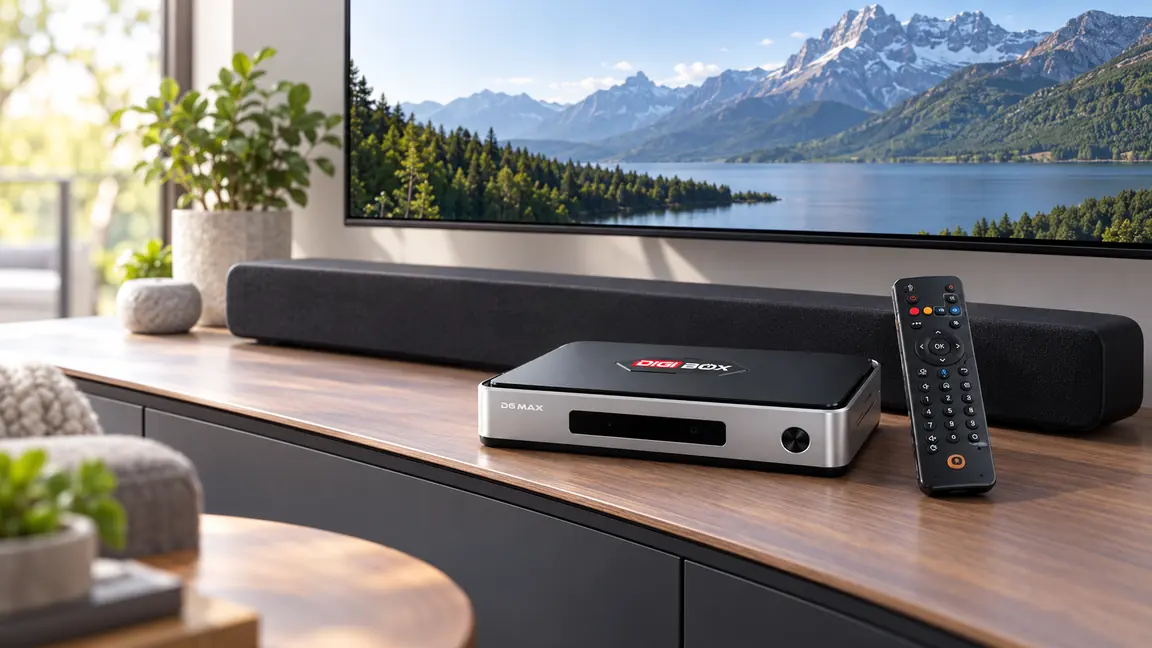
Ask where sound is meant to come out. For a direct HDMI connection, select the TV speakers or the TV’s intended HDMI audio setting. If you use a receiver or soundbar, confirm its input matches the cable path and that the TV is set to send sound to that device. DIGIBOX D6 MAX also has optical audio and AV connections, but plugging in another audio cable does not guarantee the TV will select it automatically.
4. Try an audio format the TV accepts
If the screen works but a particular TV or soundbar stays silent, inspect the DIGIBOX audio-output settings and the display’s sound settings. Where an automatic or PCM option is available, test the simpler PCM route, then replay the same program. The official setup guidance identifies audio-output compatibility as a possible cause. Record the original setting so you can restore it if this test makes no difference.
5. Compare two apps and two pieces of content
Play a different program in the same app, then try a second app or a local media file. If only one title fails, the issue may be with that stream or its audio track. If one app is consistently silent while others work, check that app’s volume, language/audio-track selection, and available update. This is a better test than assuming that all DIGIBOX apps are broken.
People sometimes search for a DIGIBOX app fix when the physical setup is the real problem. Our DIGIBOX app compatibility guide explains the separate requirements of individual services. A subscription or region restriction can affect playback availability, but it should not be confused with a universal box-wide mute.
6. Clear only the affected app’s cache
If the fault follows one app after the cable and audio-path checks pass, close that app and clear its cache in Android settings. Reopen it and test again. Do not clear every app’s data at once: data clearing can remove sign-ins or local preferences, and a factory reset is disproportionate for a single silent app. The app cache guide for DIGIBOX D6 MAX gives the exact distinction between cache clearing and a broader reset.
7. Reboot the signal chain and isolate the box
Restart the DIGIBOX D6 MAX and TV, then test again with the box connected directly to the TV. If possible, try a second display. Sound on the second display points back to the first TV, its input, or attached audio gear. Silence on both displays after known-good cabling and settings checks is stronger evidence that the box itself needs support. Write down the app, display model, cable route, and settings already tested before contacting the store.

When to stop troubleshooting
Do not perform a factory reset merely because the first video played silently. If the box repeatedly restarts, loses picture, or remains silent across multiple TVs and apps, use the DIGIBOX support contact page with your test notes. This makes the problem easier to reproduce and helps support avoid asking you to repeat the same checks.
A quick FAQ before you leave the TV
The TV has sound with other devices. Does that prove the box is faulty?
No. It narrows the problem to the DIGIBOX connection path, audio format, or box settings. Test another HDMI port and the direct-to-TV route before drawing a hardware conclusion.
Should I install another app to restore sound?
Usually no. If all apps are silent, a new app will not repair a muted TV, disconnected soundbar, or incompatible output setting. Test more than one app to locate the problem, not to replace the whole viewing setup.
Will a reset erase my accounts?
A full reset can remove app settings and sign-ins. Treat it as a later support-directed step after the reversible checks above, especially when picture is normal and only one audio route is affected.
For a fresh look at the current hardware and support details, return to the DIGIBOX official website. The DIGIBOX D6 MAX product details show the available audio and connection options when you are planning a new TV or soundbar setup.