
DIGIBOX D6 MAX buffering is easier to solve when you identify whether the delay comes from the internet connection, one application, the home network, or the box itself. The DIGIBOX authorized retailer site and the DIGIBOX D6 MAX product page confirm that the device supports dual-band Wi-Fi 6 and Gigabit Ethernet, giving you two useful connection paths to test.
Do not start with a factory reset. A short, controlled DIGIBOX D6 MAX buffering test can usually narrow the problem without deleting accounts, apps, or personal settings. This guide explains the order that produces the clearest evidence.
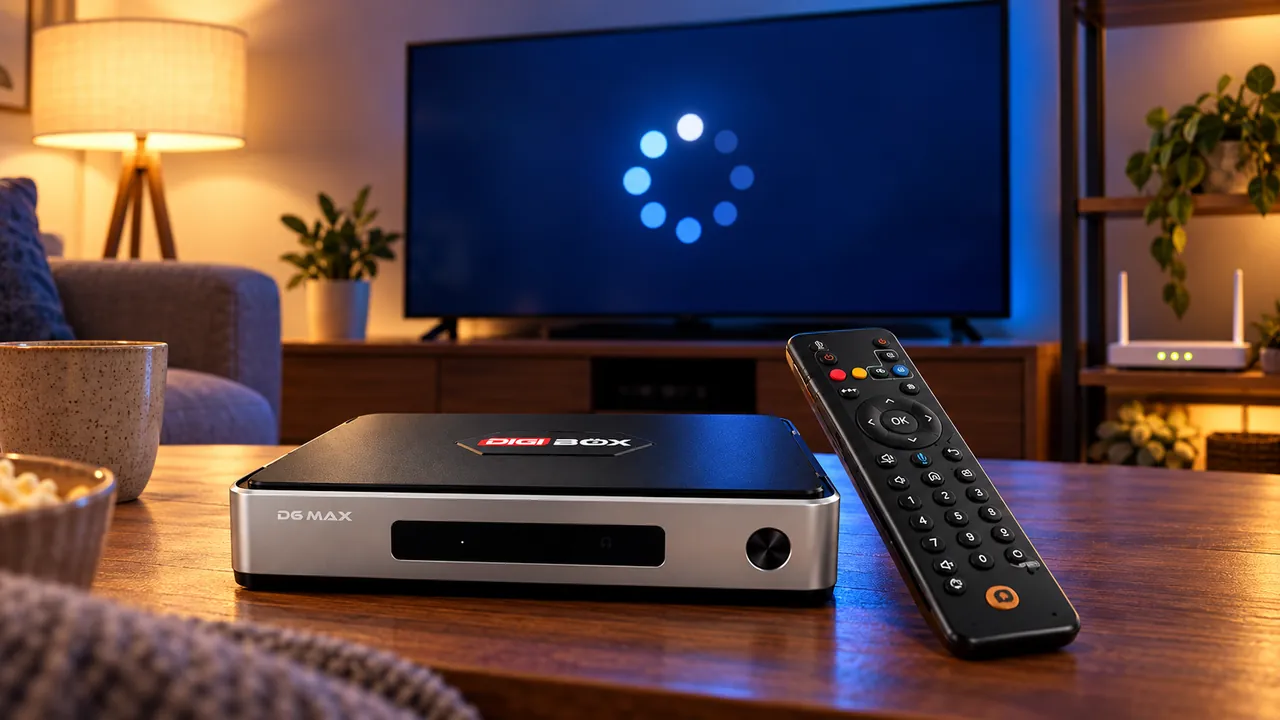
First, define what “buffering” looks like
A spinning circle, repeated pauses, a sudden drop in picture quality, and slow menu response are not the same DIGIBOX D6 MAX buffering symptom. Note when the problem begins and whether sound continues while the picture pauses. The timing tells you where to test next.
- One app only: check that app, its account, and its service status first.
- Every streaming app: test the network path and restart the router and box.
- Live video only: compare it with on-demand video because live streams can have less playback buffer.
- Menus also feel slow: check storage, background activity, updates, and ventilation.
- Only at busy evening hours: compare another time of day and another device on the same network.
Test DIGIBOX D6 MAX buffering in five minutes
Open one short video in the affected app, then play a similar video in a second app. If the second app works normally, your DIGIBOX D6 MAX and basic network connection are probably functioning. Focus on the affected app instead of changing the whole system.
If both apps pause, test the same service on a phone connected to the same Wi-Fi. When both devices struggle, the router, internet service, or service provider is a stronger suspect. When only the box struggles, continue with the connection tests below. The broader DIGIBOX D6 MAX Wi-Fi diagnosis guide is useful if the device also disconnects or cannot join the network.

Compare Ethernet, 5 GHz, and 2.4 GHz
For DIGIBOX D6 MAX buffering, a wired Ethernet test is valuable even if you prefer Wi-Fi. Connect the box directly to the router with a known-good cable, replay the same video, and keep every other condition unchanged. If buffering disappears, the box is receiving a more stable path and the issue is likely related to wireless distance, interference, or band selection.
| Connection test | What it helps reveal | Best next move |
|---|---|---|
| Gigabit Ethernet | Whether Wi-Fi instability is the main cause | Keep wired or improve router placement |
| 5 GHz Wi-Fi | Whether a faster nearby band helps | Use it when the router is reasonably close |
| 2.4 GHz Wi-Fi | Whether longer range is more reliable | Use it through walls when speed remains sufficient |
| Phone hotspot test | Whether the home network is the bottleneck | Return to the router or ISP if the hotspot works |
The dedicated Wi-Fi versus Ethernet guide for DIGIBOX explains the tradeoff in more detail. Do not assume that the strongest signal icon always means the cleanest connection; interference and congestion can still interrupt delivery.
Restart in the right order
Close the affected app, restart the DIGIBOX D6 MAX, and test again. If the symptom remains across several apps, restart the router and wait until its connection is fully restored before reopening the stream. This sequence separates a temporary app state from a network-session problem and keeps the DIGIBOX D6 MAX buffering diagnosis focused.
If the box restarts by itself rather than merely pausing video, use the separate DIGIBOX D6 MAX restart troubleshooting guide. Unexpected reboots point toward power, heat, accessories, or software stability rather than ordinary buffering.

Check the app without erasing everything
For a problem limited to one app, first force-close and reopen it. Check for an app update and confirm that the correct account is signed in. If the app still stalls, clear only its cache. Cache cleanup removes temporary files, while clearing app data can sign you out and erase local preferences.
Follow the safer sequence in the DIGIBOX D6 MAX cache-clearing guide. Reinstall an app only after simpler steps fail, and remember that third-party app availability, accounts, subscriptions, and regional access are controlled by their providers.
Separate storage pressure from network buffering
DIGIBOX D6 MAX buffering pauses playback while data arrives. Storage pressure can make the whole interface slow, delay app launches, or interfere with updates. If menus lag as well as video, review free space and remove downloads or unused apps before blaming the internet.
The storage-full cleanup guide shows how to create space without deleting everything. Keep the box in an open area so heat can escape, and avoid stacking it under other warm equipment.

A practical decision checklist
- Test a second app on the DIGIBOX D6 MAX.
- Test the same service on another device and the same network.
- Restart the app, box, and router in that order.
- Compare Ethernet with the current Wi-Fi band.
- Update the affected app and the system when updates are available.
- Clear only the affected app’s cache.
- Check free storage and ventilation if menus are also slow.
- Record which change fixes the symptom before changing anything else.
Frequently asked questions
Does DIGIBOX D6 MAX buffering mean the box is defective?
No. Buffering commonly reflects an unstable network path, congestion, or an individual app or service. Compare apps and connections before drawing a hardware conclusion.
Is Ethernet always better than Wi-Fi?
Ethernet is often more consistent, but a well-positioned Wi-Fi 6 router can also work well. The best answer depends on distance, interference, cabling, and the home network.
Should I clear cache or clear data?
Try clearing cache first because it targets temporary files. Clearing data is a stronger step that may sign you out and reset the app.
Why does live video buffer when on-demand video works?
Live delivery may have less stored playback buffer and can react more quickly to congestion or source-side issues. Test another live source and an on-demand title to compare.
When should I contact support?
Contact the seller when DIGIBOX D6 MAX buffering continues across multiple apps, networks, and a direct Ethernet test, especially if the box also freezes or restarts. Bring your test notes and order information.
Choose a flexible connection for your home
The official DIGIBOX retailer storefront explains the available support and buying policies. DIGIBOX D6 MAX combines dual-band Wi-Fi 6, Gigabit Ethernet, 4GB RAM, and 64GB storage, but stable playback still depends on the source, app, internet connection, and local network.
Use discount code DG5 at checkout for 5% off your DIGIBOX D6 MAX order.