
Private listening sounds simple: pair your headphones and keep the late-night movie from waking the house. The DIGIBOX entertainment setup can make that practical, but the connection path matters. You can pair compatible Bluetooth headphones to the box or, on some televisions, pair them to the TV. Choose one path first so a silent screen does not become a mystery.
The current DIGIBOX D6 MAX TV box specification lists Bluetooth 5.4 and support for compatible audio accessories. That tells you the hardware has Bluetooth; it does not guarantee that every headset, app, audio codec, or television will behave identically. This guide shows a measured way to connect and test headphones without changing several settings at once.

First choose where the headphones should connect
There are two common routes. Pairing to DIGIBOX D6 MAX sends the box’s audio directly to the headphones. Pairing to a Bluetooth-capable television may also carry sound from other devices connected to that TV. Your TV manual determines whether it supports headphones, how it handles its own speakers, and whether it can play through two outputs at once. Neither route is universally better; choose the one that matches your household.
| Route | Best reason to use it | Check before deciding |
|---|---|---|
| Headphones paired to DIGIBOX D6 MAX | You mainly watch through the box and want its sound in the headset. | Confirm the headset appears in the box’s accessory settings and audio plays in two different programs. |
| Headphones paired to the television | You switch among the box, game console, and other TV inputs. | Confirm the TV supports Bluetooth audio and routes HDMI input sound to the headset. |
| Wired audio through TV or receiver | Bluetooth delay or pairing is troublesome. | Check the TV or receiver output jack and headset connection; do not assume the box has a headphone jack. |
If you are still connecting the box to the television, complete the basic DIGIBOX D6 MAX HDMI setup before adding headphones. A known-working picture and TV-speaker sound give you a clean baseline.
Pair the headphones with DIGIBOX D6 MAX
Charge the headphones, put them in pairing mode using their own instructions, and bring them near the box. Open the DIGIBOX settings area and look for a Bluetooth, connected-device, or Remotes & Accessories option. Menu labels can change with system updates, so follow the closest label shown on your screen. Select the headset by its actual model name and accept the pairing prompt if one appears.
- Start a familiar program and confirm sound reaches the headset at a low, comfortable volume.
- Pause and resume the program, then try a second app or local file.
- Turn the headphones off and on once to confirm they reconnect as expected.
- Check what happens to the TV speakers; do not promise simultaneous output unless your particular setup offers it.
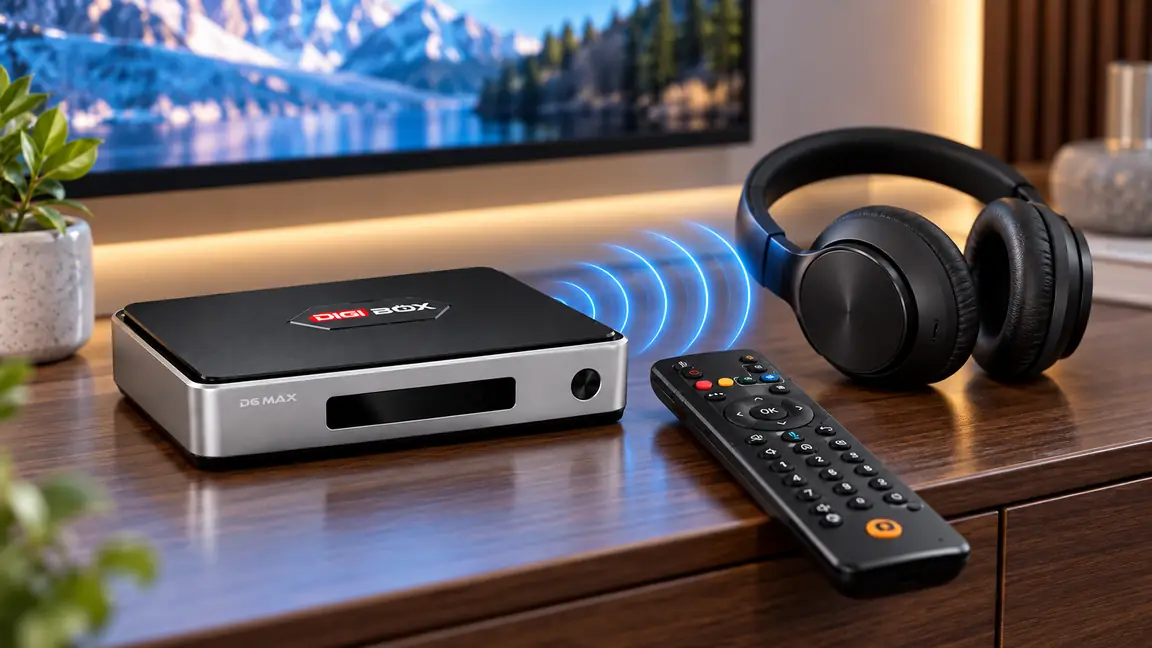
The supplied voice Air Mouse remote also uses Bluetooth functions. Pairing headphones should not require you to replace the remote or install an unrelated app. If the remote stops responding during setup, treat that as a separate accessory issue and follow the DIGIBOX D6 MAX remote pairing guide before resetting the whole box.
If you can see the video but hear nothing
Check the simplest possibility first: the headset may still be connected to a phone or another TV. Disconnect it there, then reconnect it to the box. Raise volume gradually on both the headset and DIGIBOX D6 MAX. A visible volume bar does not prove that sound has been sent to the device you expect.
Next, switch temporarily back to the TV speakers. If those work, the HDMI picture and basic audio path are healthy; concentrate on Bluetooth selection and headset pairing. If neither route works, follow the no-sound checklist for DIGIBOX D6 MAX, which separates mute, HDMI, app, TV, and soundbar causes.
What about lip-sync delay?
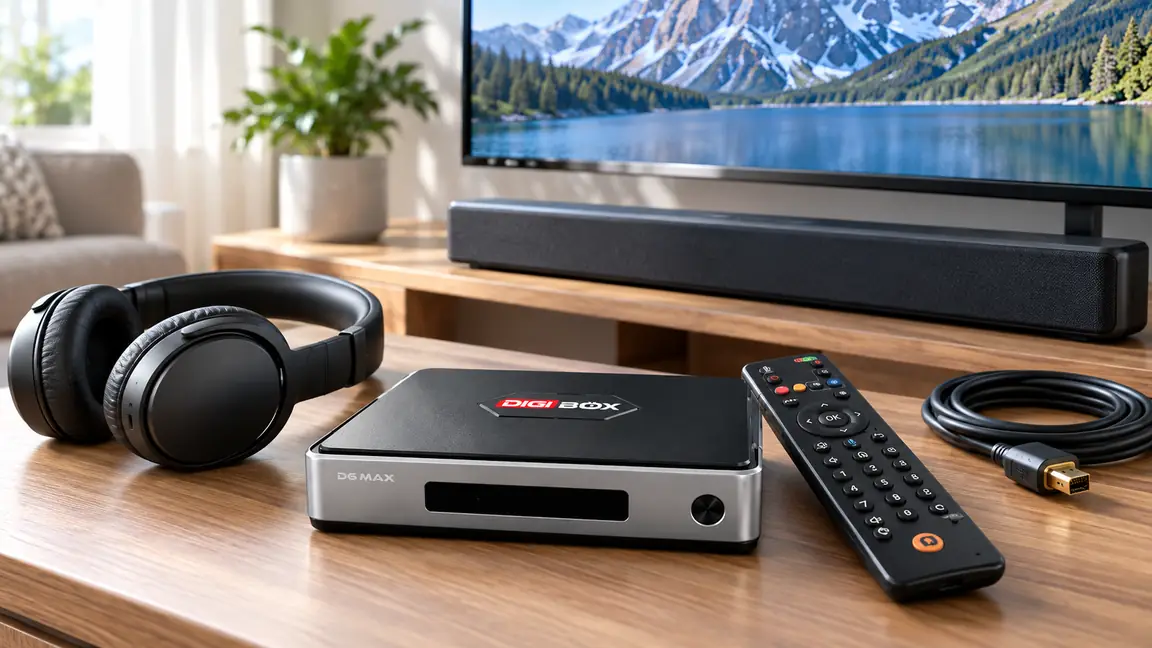
Bluetooth audio can arrive later than the picture. The delay depends on the headphones, audio format, app, and equipment in the chain; a Bluetooth version number alone does not establish low-latency playback. First test two different programs. If only one title is out of sync, inspect that player’s available audio or sync settings. If every program is late, reconnect the headset and compare the TV-speaker route.
Some televisions, soundbars, or media players offer an audio-delay adjustment; use it only when available and keep a record of the original value. If you need precise synchronization for gaming or fast sports, a wired audio route may be more dependable than relying on an unverified Bluetooth codec. This is a practical tradeoff, not a fault unique to DIGIBOX.
A small test before family movie night
- Watch a short dialogue scene. Do the words match the speaker’s mouth?
- Switch the headphones off. Does audio return to the intended speaker automatically?
- Try a built-in DIGIBOX viewing option and one other piece of content.
- Move to the normal seat and check whether the connection stays stable.
- Write down the chosen audio route so another person can restore it later.
If the trouble follows one app rather than every source, avoid a box-wide reset. The DIGIBOX app compatibility guide explains why app behavior can vary. If the whole device also has power, picture, or startup problems, use the broader DIGIBOX D6 MAX troubleshooting guide to identify the right next check.
Quick answers about Bluetooth listening
Can I pair any Bluetooth headphones?
Bluetooth 5.4 supports compatible accessories, but universal headset compatibility and every audio feature are not guaranteed. Confirm the headset can enter pairing mode and test the exact unit.
Will the TV speakers keep playing?
That depends on whether audio is paired to the box or TV and on the output rules of that specific equipment. Test it rather than assuming dual output.
Should I pair headphones to the TV instead?
That can be useful when you want sound from several HDMI sources. The TV must support Bluetooth audio and send the selected input to the headset.
Why is sound late after pairing?
Wireless processing can add latency. Compare multiple programs and the TV-speaker path, then use a supported sync adjustment or wired route if needed.
Do I need a separate app or monthly fee for headphones?
No separate DIGIBOX subscription is needed merely to pair a compatible Bluetooth headset. Particular entertainment services and home internet are separate matters.
Make the listening setup yours
Keep the audio route simple and test it with the programs you actually watch. The DIGIBOX official store has current support and ownership information. Review the DIGIBOX D6 MAX connection and audio specifications if you are planning headphones alongside a soundbar or a new television.