
You have connected your new DIGIBOX D6 MAX to the TV. The home screen appears, but the remote does not seem to respond the way you expected. The arrow keys may work, but voice search may not. Maybe the Air Mouse will not move. Or perhaps nothing happens at all.
In many cases, the remote simply needs to be paired with the box.
The good news is that pairing the DIGIBOX D6 MAX remote is quick. You do not need special tools or a complicated setup. With fresh batteries and the box turned on, it usually takes only a few moments.
If you are still getting your new box ready, you can browse the DIGIBOX official shop or check the DIGIBOX D6 MAX product page for current product information.
This guide shows you how to pair the remote, test voice control, use the Air Mouse, and troubleshoot the most common remote problems.

What Remote Comes With the DIGIBOX D6 MAX?
The current DIGIBOX D6 MAX comes with a Bluetooth Voice Air Mouse remote. It does much more than move up and down through a menu.
You can use the normal direction buttons for everyday navigation. The microphone button gives you voice input on supported screens and apps. The Air Mouse lets you move a pointer by moving the remote in your hand. Backlit buttons also make the remote easier to see when the room is dark.
Picture a normal Friday night. The lights are low. You are sitting on the sofa and want to search for a movie. Instead of tapping one letter at a time on an on-screen keyboard, you can use the voice function when the screen or app supports it. That small convenience makes a big difference when you use the box every day.
If you are new to the product and want to understand the box itself before learning the remote, our What Is DIGIBOX? guide gives you a simple overview.
Before You Pair the DIGIBOX D6 MAX Remote
Take a minute to check the simple things before you start.
The remote uses two AAA batteries. Make sure both batteries are installed in the correct direction. If the batteries have been sitting in a drawer for a long time, replace them with a fresh pair.
Turn on your DIGIBOX D6 MAX and make sure the TV is showing the correct HDMI input. Keep the remote close to the box while you pair it.
If you are trying to set up DIGIBOX D6 MAX for the first time and have not completed the HDMI, power, and internet steps yet, use our DIGIBOX D6 MAX setup guide alongside this remote guide.
Once you can see the DIGIBOX screen, you are ready.
How to Pair the Remote With DIGIBOX D6 MAX
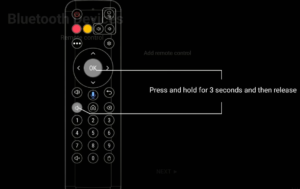
Here is the normal pairing method for the current D6 MAX remote:
- Turn on the DIGIBOX D6 MAX and your TV.
- Make sure the TV is displaying the correct DIGIBOX HDMI screen.
- Put two working AAA batteries in the remote.
- Keep the remote close to the DIGIBOX D6 MAX.
- Press and hold the Volume – button and the OK button at the same time.
- Keep holding both buttons for about 8 seconds.
- Release the buttons and wait for the Bluetooth connection to complete.
- Press the direction keys and the OK button to make sure the remote is responding.
That is usually all you need to do.
If your DIGIBOX screen shows its own Bluetooth pairing instructions, follow the button combination shown on the screen. Small changes can appear between remote or software versions, so the on-screen instructions should take priority.
Once the remote is paired, walk back to the sofa and try it again. You should be able to move through the menus without standing directly in front of the box.
How Do You Know the Remote Is Paired?
Do not worry about finding a hidden technical screen just to confirm the connection. A simple test works well.
Press the Home button. Move left and right through the DIGIBOX menu. Open an item with OK and go back again.
If those controls respond normally, the basic remote connection is working.
Now test one of the Bluetooth features. Try the Air Mouse or voice button. If normal navigation works but these features do not, the problem may be related to Bluetooth pairing, app support, or the screen you are using.
How to Use Voice Search After Pairing
Once the DIGIBOX D6 MAX remote is paired, voice control is easy to test.
Open a screen or compatible app that supports voice input. Press the microphone button and speak clearly into the remote.
Keep the request short. A movie name, app name, or simple search phrase is easier to recognize than a long sentence.
For example, imagine your parents are using the DIGIBOX TV box. Typing a long program name with arrow buttons can feel slow. Voice input can make that search much easier.
Keep in mind that voice search does not work in every app or on every screen. If the microphone works in one place but not another, the remote may be fine. That particular app may simply not support the same voice feature.
How to Use the Air Mouse
The Air Mouse is one of the handy features on the digi box D6 MAX remote.
When Air Mouse mode is active, moving your hand moves a pointer on the TV screen. It feels a little like using a computer mouse from across the room.
This can be useful with apps that have small buttons or layouts that are awkward to control with direction keys.
You do not have to use the Air Mouse all the time. For a simple TV menu, the direction pad is often easier. When an app feels difficult to navigate, switch to the Air Mouse and see which method feels more comfortable.
Bluetooth Pairing and TV Learning Are Not the Same Thing
This is where some new owners get confused.
Bluetooth pairing connects the DIGIBOX remote to the DIGIBOX D6 MAX. It lets the remote communicate with the box and use supported functions such as voice input and Air Mouse control.
TV learning is different. It is used for supported television controls, such as certain power or volume functions.
So if the remote controls the DIGIBOX menus but does not control your television volume, that does not automatically mean Bluetooth pairing failed.
TV learning support can vary by television and remote version. Follow the instructions supplied with your remote or the prompts shown on your screen when setting up those controls.
What If the DIGIBOX Remote Does Not Pair?
Do not keep pressing every button on the remote. That usually makes troubleshooting more confusing.
Start with the batteries. Remove them, check the direction, and put them back in. If you are not sure about the battery level, use a fresh pair.
Bring the remote closer to the DIGIBOX D6 MAX. Hold Volume + and OK together again for about three seconds. Release both buttons and give the box a moment to respond.
Still nothing? Restart the DIGIBOX D6 MAX. Wait for the home screen to load and try pairing again.
You can also open the Bluetooth or Remotes & Accessories area in Settings if it is available on your current system. Look for the option to add or pair a remote and follow the instructions on screen.
If the box itself is behaving strangely as well, the problem may not be limited to the remote. Our DIGIBOX D6 MAX not working guide covers other common checks.
The Remote Works, but Voice Search Does Not
This is a common situation.
You press Home and the menu moves. You press OK, and apps open. Everything looks normal. But when you try the microphone, nothing useful happens.
That does not always mean the remote is broken.
Voice input depends on the screen, app, language, network connection, and app support. Try voice search somewhere else on the device. Also make sure your DIGIBOX D6 MAX has an active internet connection.
If one app accepts voice input and another does not, the difference is probably app support rather than the remote.
Can Remote Pairing Fix DIGIBOX Buffering?
No. Remote pairing and DIGIBOX buffering are separate issues.
Think of it this way. The remote tells the box what you want to do. Your internet connection delivers the online video.
If the remote responds immediately but a video keeps stopping to load, check your Wi-Fi, router, internet speed, or the app you are using. Re-pairing the remote will not make the internet faster.
This distinction saves time. You do not want to spend twenty minutes resetting a perfectly good remote when the real problem is a weak Wi-Fi signal in the living room.
Will Pairing the Remote Change Your Apps or Channels?
No. Pairing the remote does not remove your apps or change your entertainment content.
Your remote is simply a control device. The DIGIBOX D6 MAX entertainment system and installed apps remain on the box.
If you are exploring DIGI channels or want to know what types of content are available, see our DIGIBOX channel list for the USA and Canada.
For a broader look at live TV, movies, TV series, news, variety shows, animation, sports, and other entertainment categories, read what you can watch on DIGIBOX D6 MAX.
Do You Need to Pair the Remote Again Later?
Usually, you should not have to pair the remote every time you turn on the box.
Once the Bluetooth connection is set up, everyday use should be simple. Pick up the remote and use it.
You may need to pair it again after replacing a remote, resetting the box, changing certain settings, or troubleshooting a connection problem.
If the remote suddenly stops responding after working normally for weeks, check the batteries before changing anything else. A weak battery can make a simple problem look much bigger than it is.
What If You Have a Replacement DIGIBOX Remote?
A replacement remote may need to be paired with the box before all Bluetooth features work.
Confirm that the remote is designed for the DIGIBOX D6 MAX. Install fresh batteries. Keep it near the box and use the same pairing process. Hold Volume + and OK together for about three seconds, unless the screen tells you to use a different combination.
If you are buying a replacement box or remote online, it is also worth checking the seller and exact model. Our guide on where to buy a genuine DIGIBOX D6 MAX explains what to look for before ordering.
Common Questions About the DIGIBOX D6 MAX Remote
Does the DIGIBOX D6 MAX remote use Bluetooth?
Yes. The current DIGIBOX D6 MAX uses a Bluetooth Voice Air Mouse remote. Bluetooth supports convenient control without requiring you to point the remote directly at the box for normal paired operation.
What buttons pair the DIGIBOX D6 MAX remote?
On the current pairing instructions, press and hold Volume – and OK together for about 3 seconds. If your on-screen setup gives you a different instruction, follow the screen.
What batteries does the remote use?
The current remote uses two AAA batteries. Batteries are not included with the standard remote package, so it is useful to have a fresh pair ready when you set up DIGIBOX D6 MAX.
Is DIGIBOX D6 MAX worth buying if I want voice control?
Voice control is one of the useful everyday features, but it should not be the only reason you choose a TV box. Look at the entertainment options, network connection, storage, remote, apps, and after-sales support together. Our DIGIBOX D6 MAX buyer’s guide looks at those points in more detail.
Where can I read a DIGIBOX D6 MAX review?
If you want to learn more about the device beyond remote pairing, read our DIGIBOX D6 MAX review. It covers the box from a wider everyday-use perspective.
Is DIGIBOX legal in the US?
The remote pairing process has nothing to do with content licensing or service rules. If you are researching “Is DIGIBOX legal in the US”, treat that as a separate buying question. You can find more setup and ownership information in our DIGIBOX FAQ for US and Canadian customers.
A Paired Remote Makes DIGIBOX Much Easier to Use
The remote is a small part of the DIGIBOX D6 MAX, but it is the part you hold every day.
When Bluetooth pairing is working, moving around the menus feels natural. Voice input is easier to reach. The Air Mouse is there when an app needs a pointer. You can sit back on the sofa instead of leaning toward the box and wondering why a button is not responding.
If you are setting up a new unit, keep the process simple: use fresh batteries, turn on the box, keep the remote nearby, and hold Volume + and OK together for about three seconds. Test the direction buttons, voice input, and Air Mouse once the connection is complete.
For more DIGIBOX setup, buying, and support guides, visit the DIGIBOX official website. If you are ready to order, you can also view the current DIGIBOX D6 MAX.

DIGIBOX D6 MAX Special Offer: Enter coupon code DG8 at checkout to receive 5% OFF.