
DIGIBOX D6 MAX for elderly parents works best when setup removes small moments of confusion instead of adding features. The DIGIBOX home-entertainment system gives the household one place to start, while the DIGIBOX D6 MAX TV box connects to a compatible television through HDMI. This guide is for the person doing the setup—and for the parent who should be able to enjoy the result without a daily tech-support call.
The goal is a repeatable routine: turn on the TV, choose the right input, open the familiar viewing option, and find the remote. Set that routine up together before you leave. The box has built-in entertainment apps and a voice Air Mouse remote, but the most useful feature is the one your parent can comfortably use.

Start with the television, not the app list
Sit where your parent normally watches. Can they read the TV input label from the sofa? Is the remote easy to grip? Is the power outlet reachable without moving furniture? Those practical details matter more than a long specification sheet. Check that the TV has a free HDMI port and that the box can sit on a stable, ventilated surface.
Connect the supplied power adapter and HDMI cable, select the matching TV input, then follow the on-screen language and network prompts. If this is the first installation, keep our step-by-step DIGIBOX D6 MAX setup guide nearby for the exact cable and startup sequence. Do not use an unknown power supply or interrupt a system update.
DIGIBOX D6 MAX for elderly parents: make the remote predictable
Before teaching every button, teach four actions: Home, directional arrows, OK, and Back. Practice returning to the home screen from an app three times. That one skill prevents a wrong turn from becoming a crisis. Put fresh batteries in the remote; the current product listing says batteries are not included.
The current DIGIBOX D6 MAX remote offers backlit keys, voice input, and an Air Mouse. Voice input can spare a parent from typing with arrow keys, but it depends on the screen or app supporting voice search. If basic navigation works while voice or motion control does not, use our remote-pairing walkthrough and follow any on-screen pairing instruction for that unit.
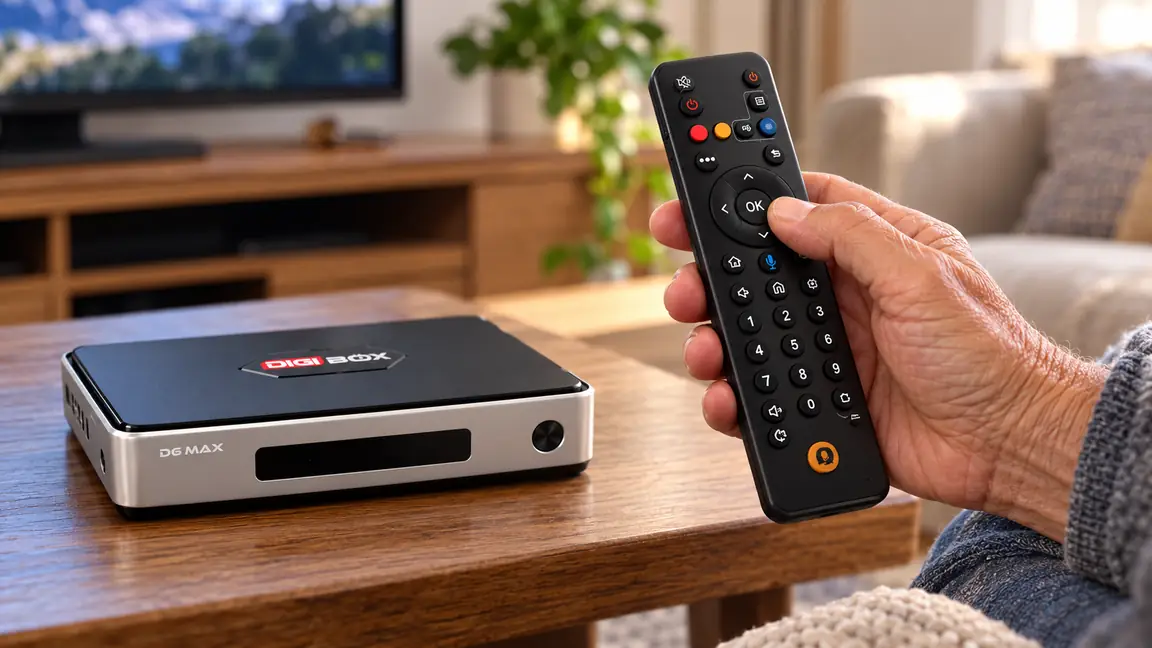
If the remote supports learning certain TV power or volume commands, test those controls with the actual television before promising a one-remote setup. TV compatibility varies. A small label on the TV remote marked “TV input” is more helpful than an instruction sheet that assumes everything will pair perfectly.
Choose three favorites, then stop
Ask what your parent already likes: a familiar news program, a type of movie, a sports category, or family-friendly shows for visiting grandchildren. DIGIBOX built-in apps cover categories including news, sports, movies, TV series, documentaries, and animation. Availability can vary by app and region, so open the desired option and confirm it works in their home instead of promising a named channel in advance.
Put the most-used choices in an easy-to-find order where the current interface allows it. Walk through one complete viewing session together. If the family wants a broader map of the built-in entertainment options, read what you can watch on DIGIBOX D6 MAX before adding any optional services.
- Keep the home screen focused on a few familiar destinations.
- Write down only the steps your parent will actually repeat.
- Leave the remote in the same visible place after every session.
- Test sound at a comfortable level before handing over the setup.
The one-page handoff card
A short card beside the television beats a long manual. Use the names printed on your parent’s own TV and remote. For example: “Turn on TV → press Input until HDMI 2 appears → press Home on DIGIBOX remote → choose News → press Back once to leave.” If the HDMI port changes, update the card immediately.
| If your parent says… | First thing to check |
|---|---|
| “The screen is blank.” | Confirm TV power and the HDMI input number. |
| “I can see a picture but hear nothing.” | Check TV mute, volume, and the selected audio output. |
| “The show keeps stopping.” | Check the home network, then test another program. |
| “The pointer is strange.” | Return to the arrow keys; use Air Mouse only where helpful. |

Plan for weak Wi-Fi before it becomes a support call
If the parent’s TV is far from the router, try normal viewing at the time they usually watch. A strong signal beside the router does not prove a reliable connection behind the TV. DIGIBOX D6 MAX offers dual-band Wi-Fi 6 and Gigabit Ethernet; the wired option can be useful when the router is close enough for a safe cable run. Our Wi-Fi versus Ethernet guide helps you decide which route fits the room.
Avoid a loose cable across a walking path. If wired networking would create a trip hazard, improve Wi-Fi placement instead. Confirm that the chosen programs open after any network change. A stable connection makes the simple routine you taught much easier to remember.
What the family should write down
- The TV input name or number used for DIGIBOX D6 MAX.
- The Wi-Fi network name and where the password is stored securely—not the password on a card visible to visitors.
- The usual path to the two or three favorite viewing categories.
- Who to call if the box loses power, the remote will not respond, or the network changes.
When several family members share the TV, agree on one place for the remote and one person to manage settings. That is often the difference between a good first evening and a confusing second week. Our guide for overseas families explains how a shared television can serve different generations without assuming everyone watches the same content.

Quick questions before you leave
Can an older parent use DIGIBOX D6 MAX without voice search?
Yes. The direction keys, OK, Home, and Back can handle ordinary menu navigation. Voice search is optional and only works on supported screens and apps.
Does DIGIBOX D6 MAX need internet?
Online channels and cloud-based entertainment generally need an active connection. Local media use depends on supported files and available storage or connected devices. Test the parent’s actual viewing routine while connected to their home network.
What if the television has no HDMI port?
The usual connection is HDMI. An older display without HDMI may need an active converter, and compatibility is not guaranteed. Check the television model before ordering.
Will every channel be available in both the USA and Canada?
Do not assume a fixed lineup across locations. Confirm the current app, regional availability, and desired program on the actual setup.
Is there a mandatory DIGIBOX monthly box fee?
The current retailer listing does not state a mandatory monthly hardware fee. Home internet and any optional third-party services are separate decisions. The DIGIBOX monthly-cost guide breaks down those costs.
A setup your parent can repeat
The best result is not an impressive app tour; it is a quiet evening when your parent can get to a favorite program on their own. Revisit the handoff card after a week and remove steps they never use. For hardware details and current support information, start at the official DIGIBOX store. Check the DIGIBOX D6 MAX specifications and package against the TV and room you are preparing.