
DIGIBOX D6 MAX parental controls work best as several layers rather than one switch. Start with the device settings that are actually present on your box, add the PIN and rating tools inside each app, and support them with a simple family routine. The DIGIBOX authorized retailer site and the DIGIBOX D6 MAX product page identify the device as an Android 12 TV box, but menus and app features can vary after updates.
This guide avoids assuming that every DIGIBOX D6 MAX has a Google TV kids profile. Instead, it shows how to check what your unit offers and build a practical setup even when a particular profile option is unavailable.

What parental controls can and cannot do
DIGIBOX D6 MAX parental controls may begin with a device-level restriction that limits access to selected apps or settings. An app-level PIN can protect purchases, mature profiles, or rated content inside that service. No DIGIBOX D6 MAX parental controls layer can replace supervision, and one app’s PIN does not automatically control another app.
- Device layer: restrict profiles, app access, installations, or settings when the Android build provides those options.
- App layer: use each provider’s profile, rating, purchase, and PIN tools.
- Account layer: review the Google account or family settings connected to installed apps.
- Household layer: agree on viewing times, shared spaces, and where the remote is kept.
Step 1: inspect DIGIBOX D6 MAX parental controls
Open Settings and look for sections such as Accounts, Users, Security, Restrictions, Privacy, or Apps. The exact wording can change with the launcher or system update. If you see a restricted-profile or secondary-user option, read the on-screen explanation before enabling it and note which apps remain available.
If the option is absent, do not download an unknown “parental control” APK simply to copy a menu shown in another device guide. Use reputable app-store sources and the controls already included in your streaming apps. The DIGIBOX D6 MAX app installation guide explains the safer difference between built-in apps, Google Play, and manual APK installation.

Step 2: protect purchases and app installation
Open the app store settings and require authentication for purchases when that option is available. Review the signed-in account, payment methods, and automatic installation settings. Within DIGIBOX D6 MAX parental controls, a purchase PIN is not the same as a content-rating filter, so configure both where appropriate.
Use a PIN that children cannot easily guess, and do not write it on the remote or television stand. Store it in a secure password manager or another private place. If a profile requires an account password to exit, make sure the adult responsible for the box can recover that account before enabling the lock.
Step 3: configure each viewing app separately
Because DIGIBOX D6 MAX parental controls do not automatically govern every provider, open every app the family uses and check its profile and parental-control settings. Look for child profiles, maturity ratings, playback restrictions, purchase confirmation, search limits, and profile locks. Availability depends on the provider, account type, subscription, and region.
| Control layer | What to check | What it does not guarantee |
|---|---|---|
| DIGIBOX D6 MAX settings | Users, restrictions, app access, installations | Control inside every third-party app |
| App profile | Ratings, child profile, PIN, purchase lock | Restrictions in other apps |
| Google or provider account | Family membership and purchase authentication | Identical features in every region |
| Family routine | Time, room, remote storage, discussion | Technical enforcement when adults share a PIN |
After setting up DIGIBOX D6 MAX parental controls, test from the child’s point of view. Try opening a blocked app, switching profiles, changing settings, and making a purchase without completing it. The goal is to find gaps before normal use, not to assume a lock works because a toggle is visible.

Step 4: make the remote and home screen easier to manage
Keep child-approved apps easy to find and move adult-only apps away from the first row when the launcher allows rearranging. Remove shortcuts the household does not use. A clean home screen reduces accidental launches and makes the rules easier to follow.
The DIGIBOX D6 MAX voice Air Mouse remote includes navigation, voice, motion-pointer, backlight, and shortcut functions. Learn the buttons before handing it to a child, and review the remote pairing guide if control becomes unreliable. Voice results and recommendations can vary by app and account, so the voice search guide is also worth reviewing with older children.
Step 5: add a family viewing routine
DIGIBOX D6 MAX parental controls are most useful when the household rule is clear. Decide when viewing begins and ends, whether the box stays in a shared room, which apps require an adult, and where the remote rests after bedtime. Review DIGIBOX D6 MAX parental controls as children grow instead of treating the first configuration as permanent.
The companion article on building a better family viewing routine with DIGIBOX D6 MAX focuses on habits, discussion, and age-appropriate supervision rather than settings alone. For a household that includes grandparents, the elderly-parent setup guide can help balance safety with a simple interface.
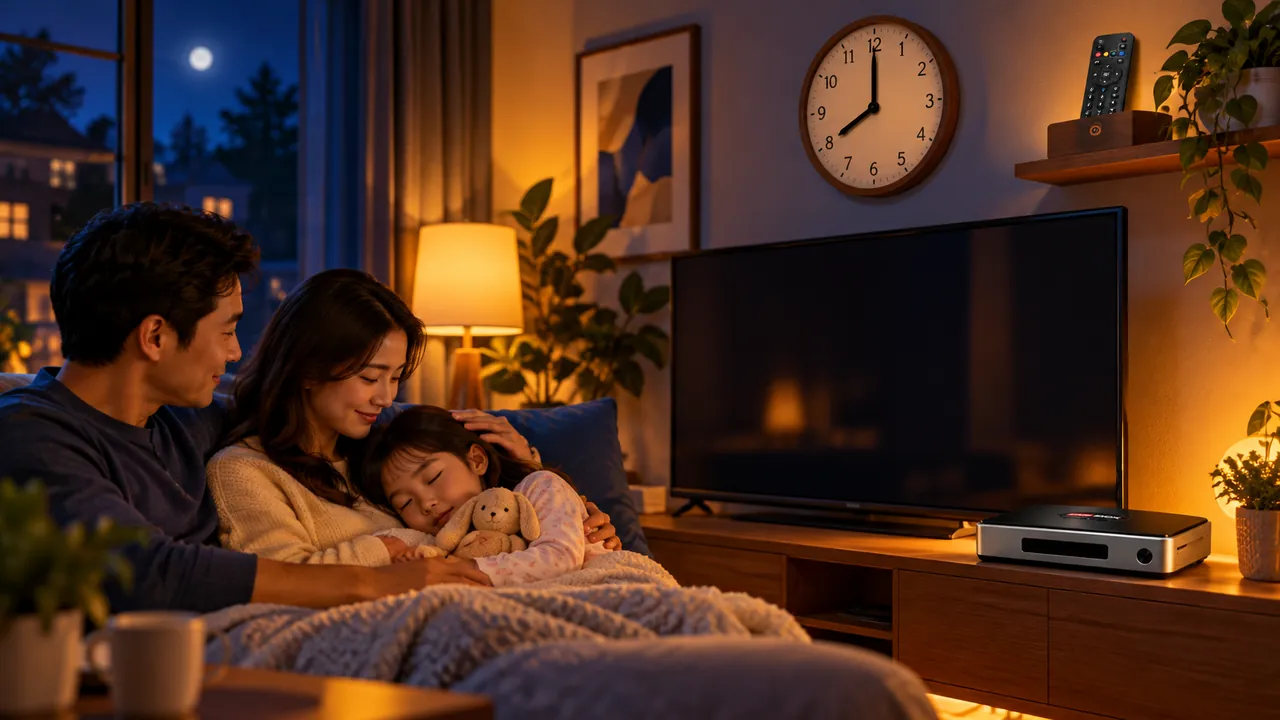
A setup checklist for parents
- Update the DIGIBOX D6 MAX and installed apps when updates are available.
- Review Accounts, Users, Security, Restrictions, and Apps menus.
- Require authentication for app-store purchases.
- Configure profiles, ratings, and PINs inside each viewing app.
- Test blocked actions from the child’s profile or normal viewing position.
- Keep recovery information private and available to the responsible adult.
- Place the remote in an agreed location after viewing time.
- Review the setup every few months and after major updates.
Frequently asked questions
Do DIGIBOX D6 MAX parental controls include a kids profile?
Do not assume so. The product uses Android 12, but profile features and menu names can differ by software build, launcher, account, region, and update. Check the settings on the actual unit.
Can one PIN control every app?
Usually not. Device, app-store, and streaming-app locks are separate systems. Configure and test each layer individually.
Will a rating filter block all unsuitable search results?
Not necessarily. Some filters apply only to recommendations or a provider’s own catalog. Search and third-party app results may follow different rules.
What if the parental-control menu disappears after an update?
Check the revised Settings categories, restart the box, and review app-level controls. Do not factory-reset until you have documented accounts and tried safer options.
Should parents install a third-party control app?
Only after reviewing the developer, permissions, privacy policy, update history, and compatibility. Built-in settings and reputable provider tools are safer starting points.
Build a simpler family entertainment setup
Visit the DIGIBOX retailer home page for current buying and support information. DIGIBOX D6 MAX offers Android 12, 4GB RAM, 64GB storage, flexible connectivity, and a voice Air Mouse remote; the most dependable family setup still combines device options, provider controls, and active household guidance.
Use discount code DG5 at checkout for 5% off your DIGIBOX D6 MAX order.