
Most guides on how to set up DIGIBOX D6 MAX read the same way: a bulleted list of steps, top to bottom, do this then this then that. And they’re not wrong — the DIGIBOX D6 MAX is a genuinely easy Android TV box to set up. But if you’ve ever helped a parent install one, you know the steps aren’t what trip people up. What trips them up is the small stuff that happens between the steps.
So this guide is written differently. It’s a timeline of your first 30 minutes with the box — every step is here, in the right order, but so is the little friction point that usually goes with it. If a five-minute detour usually happens between “connect HDMI” and “see picture,” you’ll see it called out where it belongs. By the end, your DIGIBOX D6 MAX is on, connected, and ready to use — and you’ll know what any small hiccup means, without Googling in a panic.
What To Do Before You Set Up DIGIBOX D6 MAX
Before you unbox anything, do this. It’s the part everyone skips, and it’s the part that causes 80% of the “why isn’t this working” moments later.
- Find a free HDMI port on your TV — and note the number. You’ll need to switch to it once the box is powered on.
- Have your Wi-Fi password within reach (or, ideally, an Ethernet cable if the router is nearby — more on this later).
- Grab two AAA batteries for the remote. They aren’t always in the box.
- Clear a spot with airflow. Not stacked on a receiver, not sealed in a cabinet with no gaps. Any Android box runs cooler and faster with a little breathing room.
Done? Good. Let’s start the clock.
Set Up DIGIBOX D6 MAX
Unbox and check — about 3 min
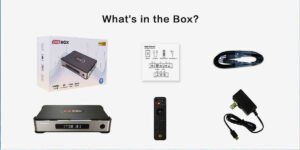
Inside the retail box you should find: the DIGIBOX D6 MAX unit, the Bluetooth voice Air Mouse remote, a USB-C power adapter, and the user manual. Your order also includes three bonus gifts — a wireless mini keyboard, an 8K HDMI cable, and a remote control protective cover. Lay everything out on the desk. If anything’s missing, this is the moment to notice, not after you’ve plugged in three cables.
Connect HDMI — about 2 min
Use the included 8K HDMI cable. Plug one end into the DIGIBOX, the other into your TV’s HDMI port. Push firmly at both ends — loose HDMI is the number-one cause of “no signal” complaints. If your TV is wall-mounted, take the extra minute to route the cable neatly now; you won’t want to come back later.
Connect power — about 1 min
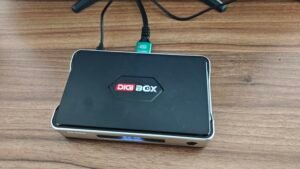
Plug the USB-C power adapter into the DIGIBOX and then into a wall socket. A small indicator light should come on — the box is powered but not yet showing on the TV. That’s normal.
Switch the TV to the right input — about 2 min, or 15 if you skipped the prep step
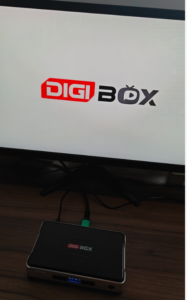
This is where the “prep” pays off. On your TV remote, press Input or Source, and select the HDMI port you plugged into. If you see a black screen at this stage, don’t panic — it’s almost always one of three things: wrong HDMI input selected, cable not fully seated, or the TV was on standby. Cycle through inputs, reseat the cable, done.
Insert batteries and pair the remote — about 3 min
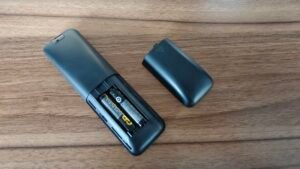
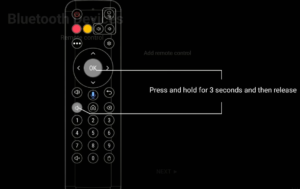
Slide two AAA batteries into the remote (mind the +/– direction — reversed batteries are the single most common cause of a Bluetooth-pairing “no response” complaint). Point it at the DIGIBOX — most of the time it pairs automatically on first startup. If the buttons don’t respond, follow the on-screen prompt (or the manual): typically you press and hold the pairing button for a few seconds until an LED flashes. Test the arrow keys — if they move a cursor on screen, you’re good.
Language and initial choices — about 2 min
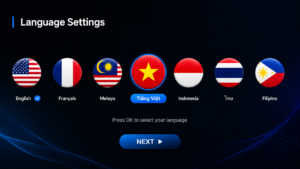
The DIGIBOX first-run screen will ask you to choose a language and confirm a few basics. Don’t overthink this — everything here can be changed later in Settings.
Connect to the internet — about 5 min (Wi-Fi) or 1 min (Ethernet)
Two options here, and the choice matters more than most people realise:
Option A — Wired (Ethernet). If your router is near enough for a cable, plug into the DIGIBOX’s Gigabit Ethernet port. It’s the single biggest anti-buffering upgrade you can make. Connection: instant.
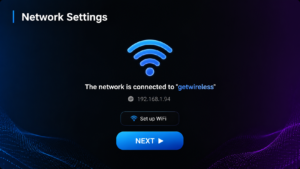
Option B — Wi-Fi. Choose your network from the list, enter the password carefully (Wi-Fi 6 dual-band is supported, so both 2.4 GHz and 5 GHz will show — 5 GHz is faster if you’re close to the router). Password fields on TV remotes are fiddly; take your time. If your Wi-Fi is fine but the box says “connected without internet,” try restarting the router — the DIGIBOX is fine, the router isn’t.
Sign in to Google (optional but recommended) — about 5 min
If you plan to use the Google Play Store to install compatible apps, signing in now saves time later. You can skip this and add it later — it’s not required to use the box.
Let the box update itself — 3 to 10 min, and it’s important
First-run OTA updates are a thing. If a prompt asks to update, let it. Don’t unplug during an update — that’s the one action that can actually break the box. Plug in, walk away, make a coffee.
You’re in
Home screen. Voice remote working. Internet connected. Now the box is yours to explore. Compatible apps install from the store the same way they do on a phone. Try the voice search first — hold the microphone button, say a title, release. It’s the feature people underuse.
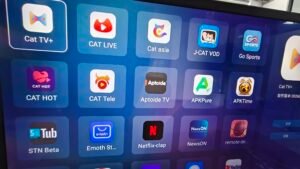
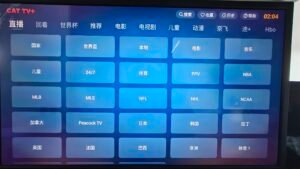
Three Questions People Always Ask
“Which apps should I install first?”
Whatever you already use on your phone. DIGIBOX is an Android TV box, so compatible apps install from supported sources like the Play Store; account, subscription and regional availability are controlled by each app provider, exactly as on any other Android device.
“Do I need to configure anything for 4K or 8K?”
Usually no. The DIGIBOX D6 MAX supports H.265 with 4K at 60fps and 8K at 24fps, and it negotiates the right output with your TV automatically. If you want to double-check, Settings → Display shows the current resolution. Actual playback quality depends on the source, the app, the HDMI cable, and your network.
“Is there anything I should set up for elderly parents before I leave?”
Yes — three things, five minutes total. Turn the home-screen text size up in Settings if available. Pin the apps they’ll actually use to the top of the home screen. Show them the voice search button on the remote and get them to try it once. After that, they’ll usually be fine.
What To Check When Something Doesn’t Work
A quick reference for the “hmm, that’s odd” moments in the first day of use. None of these mean the box is faulty.
- Black screen after switching input. HDMI is loose, or the wrong HDMI port is selected. Not the box.
- Remote isn’t responding. Batteries, or pairing dropped. Hold the pairing button until the LED flashes.
- Wi-Fi connects but nothing loads. Router problem 9 times out of 10. Restart the router first, then re-test.
- Buffering on a specific app. That app’s servers or your bandwidth — not the box. Try another app to confirm.
- Box feels warm. Normal. Only worry if it’s hot to the touch and behaving oddly. Give it airflow.
Understand Apps, Content & How It Works
Once setup is done, what you can watch depends on the apps you install and the services you’re entitled to use under the laws of your region — not on the box itself. The DIGIBOX D6 MAX is an Android TV box with a clean interface, powerful hardware and voice search; the apps do the watching. Treat it like a big-screen Android device.
What To Do After You Set Up DIGIBOX D6 MAX
Congratulations — the hard part is behind you. The DIGIBOX D6 MAX is one of the easier Android TV boxes to set up, and once it’s live on your Wi-Fi, day-to-day use gets straightforward fast. Two suggestions for the first week: use the voice search often (it’s a lot better than typing on a remote), and if you experience any buffering, try the Ethernet cable before blaming the box — it’s almost always the network.
Want a deeper look at what the box can do next? See our DIGIBOX D6 MAX review for full specs and real-world performance, and our DIGIBOX VS UBOX for comparing DIGIBOX with UBOX (Unblock Tech TV Box). Buying, or checking your model? Start at the DIGIBOX product page.
Quick Answers
How long does DIGIBOX setup take?
About 30 minutes end-to-end for a first-time user, including a firmware update. If you’ve set up an Android device before, it can be done in 15 minutes.
Do I need Wi-Fi to set up DIGIBOX D6 MAX?
Please ensure you have internet — either Wi-Fi or Ethernet works. Ethernet is more stable, especially for higher-resolution streaming.
My DIGIBOX shows “no signal” on the TV — what do I do?
Ninety percent of the time it’s the HDMI input selection on the TV or a loose cable. Reseat both ends of the HDMI cable, then cycle through your TV’s HDMI inputs until the DIGIBOX home screen appears.
Do I need a Google account to use DIGIBOX?
Not to use the box, but signing in lets you install compatible apps from the Google Play Store, which most users want. You can add or remove the account later at any time.
Ethernet or Wi-Fi — which should I choose?
Ethernet if your router is close. It’s more stable and eliminates most buffering complaints. Wi-Fi 6 works well when Ethernet isn’t practical.
Is DIGIBOX easy for elderly parents to use after setup?
Yes, particularly if you spend five minutes pinning their most-used apps to the home screen and showing them how the voice search button works. Set up once, and daily use becomes very simple.